Docusaurus

This guide instructs you on how to integrate Netlify CMS with Docusaurus.

Before you begin

  • Sign up for GitHub and Netlify.
  • Download Node.js version 14 or above.
  • Install the GitHub CLI.
  • Install and authenticate the Netlify CLI.
Create a new Docusaurus project

# 1. Use Docusaurus to create a site scaffold.
npx create-docusaurus@latest my-website classic

# 2. Run the development server.
cd my-website
npm run start

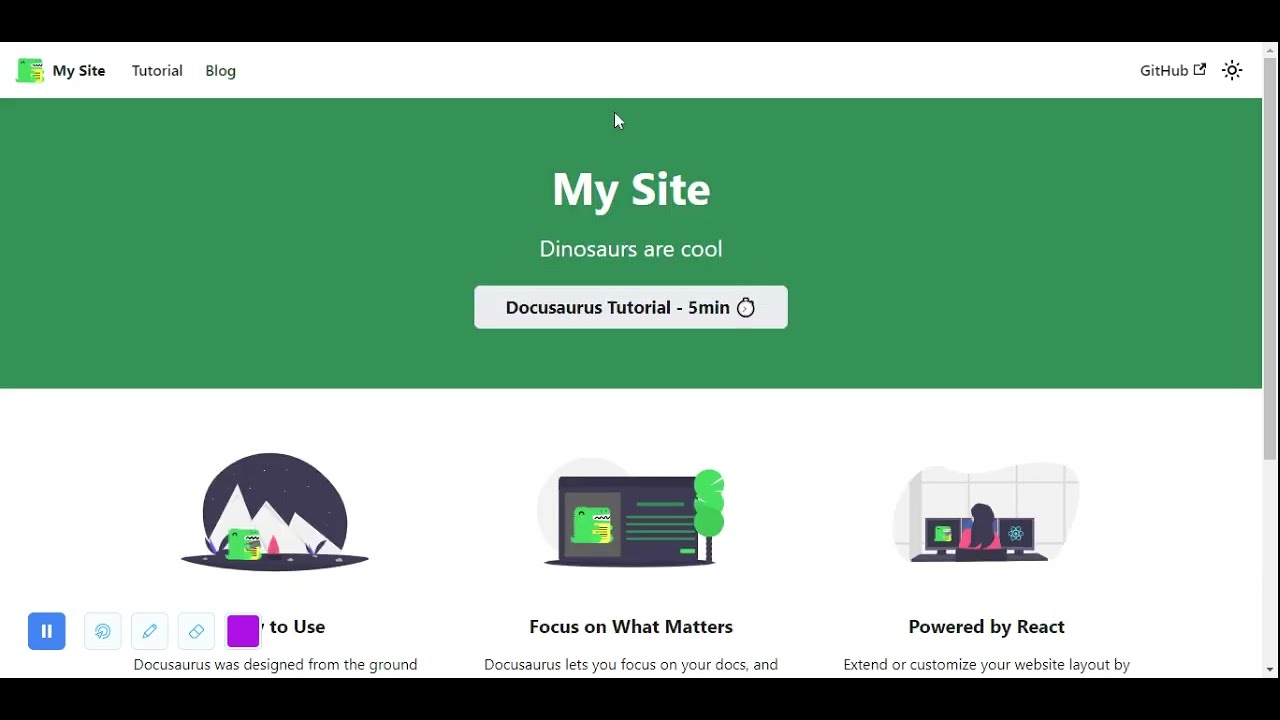
A browser window opens at http://localhost:3000.

The development server now serves your website at http://localhost:3000. As you edit the source files in /my-website/, you can visit http://localhost:3000 to preview your changes.

Push your project to GitHub

Netlify CMS requires a backend to store content. Netlify CMS supports using Git hosts, like GitHub or GitLab, as backends. This guide uses GitHub.

# 1. Initialize your local Git repository.  
git init

# 2. Rename your initial branch to match GitHub.
git branch -m main

# 3. Stage all your local files to your repository.
git add . 

# 4. Commit your staged changes.
git commit -m 'Initial commit'

# 5. Create a remote repository on GitHub using the GitHub CLI.
gh repo create my-website

Don’t add a license or a .gitignore. Do add an “origin” git remote.

# 6. Update your remote repository with your staged changes. 
git push -u origin main

Publish your project using Netlify CLI

  1. Connect Netlify CLI to your GitHub repository.
    netlify init
  2. Choose Create & configure a new site.
  3. Choose your team and site name.
  4. Choose yarn build for your build command.
  5. Choose build for your deployment directory.

Choose the default option for everything else.

Your website is now deployed. Netlify provides you with a randomly generated domain name. Run netlify open --site to view your deployed site.

Add Netlify CMS to your project

Before you begin

  1. Remove all existing posts from /blog.
    rm -rf ./blog/*
  2. Create a new blog post post titled 2021-11-15-first-blog-post.md.
    touch ./blog/2021-11-15-first-blog-post.md
  3. Edit 2021-11-15-first-blog-post.md to look like this:
    ---
    title: First Blog Post
    slug: first-blog-post
    tags:
      - foo
      - bar
    authors:
      - name: Garrison McMullen
        title: Instruction Writer
        url: https://github.com/garrison0
        image_url: https://avatars.githubusercontent.com/u/4089393?v=4
    ---
    Lorem ipsum dolor sit amet, consectetur adipiscing elit. Pellentesque elementum dignissim ultricies. Fusce rhoncus ipsum tempor eros aliquam consequat.

Procedure

  1. Create an admin directory inside static.
    cd static
    mkdir admin
  2. In the admin directory, create a config.yml file and an index.html file.
    cd admin
    touch config.yml
    touch index.html
  3. Edit index.html to look like this:
    <!doctype html>
    <html>
    <head>
      <meta charset="utf-8" />
      <meta name="viewport" content="width=device-width, initial-scale=1.0" />
      <title>Content Manager</title>
    </head>
    <body>
      <!-- Include the script that builds the page and powers Netlify CMS -->
      <script src="https://unpkg.com/netlify-cms@^2.0.0/dist/netlify-cms.js"></script>
    </body>
    </html>

    index.html displays the Netlify CMS admin interface. You’ll use the admin interface to edit your blog posts.

  4. Edit config.yml to look like this:
    backend:
      name: github
      branch: main 
      repo: <your-github>/my-website
    
    # These lines should *not* be indented
    media_folder: "static/img" # Media files will be stored in the repo under static/images/uploads
    public_folder: "/img/" # The src attribute for uploaded media will begin with /images/uploads
    
    collections:
    - name: blog
      label: "blog"
      folder: blog
      identifier_field: title
      extension: md
      widget: "list"
      create: true
      slug: "{{year}}-{{month}}-{{day}}-{{slug}}" # Filename template, e.g., YYYY-MM-DD-title.md
      fields:
        - { name: title, label: Title, widget: string }
        - { name: body, label: Body, widget: markdown }
        - { name: slug, label: Slug, widget: string }
        - label: "Tags"
          name: "tags"
          widget: "list"
        - label: "Authors"
          name: "authors" 
          widget: "list"
          fields:
            - { name: name, label: Name, widget: string }
            - { name: title, label: Title, widget: string } 
            - { name: url, label: URL, widget: string } 
            - { name: imageUrl, label: ImageURL, widget: string } 

    config.yml specifies what kind of content your blog posts have. The content specification enables Netlify CMS to edit existing posts and create new ones with the same format. To learn more, read about Netlify CMS’ Configuration options.

  5. Visit localhost:3000/adminYou can now view and edit 2021-11-15-first-blog-post.md through the admin interface. You can also create new blog posts.Warning: Any changes you publish through the admin interface will only effect your remote GitHub repository. To retrieve these changes locally, git pull from your local repository.
  6. Commit and push your new changes to your remote repository.
    git add . 
    git commit -m "Add Netlify CMS"
    git push

    Netlify builds and deploys your new changes.

Add GitHub as an authentication provider

Before you can access /admin/ through your Netlify domain, you need to set up an authentication provider. The authentication provider allows Netlify CMS to determine whether users have read and write access to /admin/. This guide uses GitHub credentials for authentication.

Configure GitHub

  1. Create a new GitHub OAuth application.
  2. Enter your Netlify domain as the Homepage URL.
  3. Enter https://api.netlify.com/auth/done as the Authorization callback URL.
  4. Click Register application.
  5. Click Generate a new client secret.
  6. Copy the provided client secret and client ID.

Configure Netlify

  1. On Netlify, under Site Settings > Access control > OAuth > Authentication Providers, click Install provider.
  2. Enter your client secret and client ID from GitHub.
  3. Click Install.

🎉 All done! Now you can access the admin interface through your Netlify URL.
Git Gateway Backend

Git Gateway is a Netlify open source project that allows you to add editors to your site CMS without giving them direct write access to your GitHub or GitLab repository. (For Bitbucket repositories, use the Bitbucket backend instead.)

Git Gateway with Netlify

The Netlify Identity service can handle the authentication and provides a simple interface for user management. The Netlify CMS featured templates are working examples of this backend.

To use it in your own project stored on GitHub or GitLab, follow these steps:

  1. Head over to the Netlify Identity docs and follow the steps to get started.
  2. Add the following lines to your Netlify CMS config.yml file:
backend:
  name: git-gateway

Reconnect after Changing Repository Permissions

If you change ownership on your repository, or convert a repository from public to private, you may need to reconnect Git Gateway with proper permissions. Find further instructions in the Netlify Git Gateway docs.

Git Gateway without Netlify

You can use Git Gateway without Netlify by setting up your own Git Gateway server and connecting it with your own instance of GoTrue (the open source microservice that powers Netlify Identity), or with any other identity service that can issue JSON Web Tokens (JWT).

To configure in Netlify CMS, use the same backend settings in your Netlify CMS config.yml file as described in Step 2 of the Git Gateway with Netlify Identity instructions above.

Authentication Providers

Authentication Providers

One challenge for frontend projects is handling authentication. OAuth2 is a widely accepted standard used by many services and APIs, but the OAuth authentication process requires a server to send a signed request to the OAuth server, signed with a secret that you can never expose to the client side of your application.

Netlify solves this problem by providing an integrated service that will sign the OAuth requests for you and give back an access token ready to use.

Netlify currently supports authentication with GitHub, GitLab, and Bitbucket.

#Enable OAuth for a Netlify site

While the below workflow is specifically for GitHub, the GitLab and Bitbucket workflows are similar.

Before you can use an authentication provider, you need to:

  1. register an API application with the OAuth provider
  2. configure credentials in the Netlify UI

#OAuth provider setup

You need to create an API application and make note of the Client ID and a Client Secret so that you can use them in your Netlify configuration.

  1. In GitHub, go to your account Settings and select Developer Settings, then OAuth Apps or use this shortcut.
  2. Select Register a new application.
  3. For the Authorization callback URL, enter https://web.archive.org/web/20220805155937/https://api.netlify.com/auth/done. The other fields can contain anything you want.
  4. On your new application’s GitHub overview page, make note of the Client ID.
  5. Generate a Client Secret and make note of it for later. You can’t access this secret again.

#Netlify UI settings

When you complete application registration with GitHub, you need to add the Client ID and Client Secret to your Netlify site:

  1. Go to Site settings > Access control > OAuth.
  2. Under Authentication Providers, select Install Provider.
  3. Select GitHub and enter the Client ID and Client Secret from earlier, then save.

#Site usage example

Once you’ve configured an authentication provider, you can use it to obtain an access token in your application.

You can preview the OAuth user experience in our demo.

Here’s an example of how to ask users to authenticate with GitHub and use the resulting token in your application’s calls to the GitHub API:

<!DOCTYPE html>
<html>
  <head>
    <title>GitHub Authentication Example</title>

    <!-- Make sure to include Netlify’s authentication library -->
    <!-- Also available from npm as netlify-auth-providers -->
    <script src="https://web.archive.org/web/20220805155937/https://unpkg.com/netlify-auth-providers"></script>
  </head>
  <body>
    <h1>GitHub Authentication Example:</h1>
    <p><a href="#" id="login">Authenticate</a></p>
    <p>Token: <span id="output-token">Not authenticated yet</span></p>
    <p>
      User emails:
      <span id="output-email">Not authenticated yet</span>
    </p>

    <script>
      const anchorTag = document.getElementById("login");
      const outputToken = document.getElementById("output-token");
      const outputEmail = document.getElementById("output-email");

      anchorTag.addEventListener("click", (event) => {
        event.preventDefault();

        const authenticator = new netlify.default({});

        authenticator.authenticate(
          // Set the OAuth provider and token scope
          // Provider can be "github", "gitlab", or "bitbucket"
          // The scopes available depend on your OAuth provider
          { provider: "github", scope: "user" },
          async function (error, data) {
            if (error) {
              outputToken.innerText =
                "Error Authenticating with GitHub: " + error;
            } else {
              outputToken.innerText =
                "Authenticated with GitHub. Access Token: " +
                data.token;
              outputEmail.innerText = await loadGitHubUserEmails(
                data.token
              );
            }
          }
        );
      });

      async function loadGitHubUserEmails(token) {
        return await fetch("https://web.archive.org/web/20220805155937/https://api.github.com/user/emails", {
          headers: {
            Accept: "application/vnd.github.v3+json",
            Authorization: `token ${token}`,
          },
        })
          .then((response) => response.json())
          .then((response) => JSON.stringify(response));
      }
    </script>
  </body>
</html> OAuth tokens are scoped to limit access. Each OAuth provider has different scopes you can use in your application. In the above GitHub example, the scope is set to user, which has read and write access to profile information. If you don’t provide a scope, OAuth providers usually apply the default scope to your token. Default scopes typically only have read access to public information. You can find a list of scopes for supported OAuth providers below: GitHub GitLab Bitbucket

GitLab Backend

GitLab

For repositories stored on GitLab, the gitlab backend allows CMS users to log in directly with their GitLab account. Note that all users must have push access to your content repository for this to work.

Note: GitLab default branch is protected by default, thus typically requires maintainer permissions in order for users to have push access.

The GitLab API allows for two types of OAuth2 flows:

  • Web Application Flow, which works much like the GitHub OAuth flow described above.
  • Implicit Grant, which operates without the need for an authentication server.

Web Application Flow with Netlify

When using GitLab’s Web Application Flow for authentication, you can use Netlify to handle the server-side authentication requests.

To enable it:

  1. Follow the GitLab docs to add your Netlify CMS instance as an OAuth application. For the Redirect URI, enter https://api.netlify.com/auth/done, and check the box for api scope.
  2. Follow the Netlify docs to add your new GitLab Application ID and Secret to your Netlify site dashboard.
  3. In your repository, add the following lines to your Netlify CMS config.yml file:
backend:
  name: gitlab
  repo: owner-name/repo-name # Path to your GitLab repository

Client-Side Implicit Grant (GitLab)

With GitLab’s Implicit Grant, users can authenticate with GitLab directly from the client. To do this:

  1. Follow the GitLab docs to add your Netlify CMS instance as an OAuth application. For the Redirect URI, enter the address where you access Netlify CMS, for example, https://www.mysite.com/admin/. For scope, select api.
  2. GitLab gives you an Application ID. Copy this ID and enter it in your Netlify CMS config.yml file, along with the following settings:
    backend:
     name: gitlab
     repo: owner-name/repo-name # Path to your GitLab repository
     auth_type: implicit # Required for implicit grant
     app_id: your-app-id # Application ID from your GitLab settings

    You can also use Implicit Grant with a self-hosted GitLab instance. This requires adding api_rootbase_url, and auth_endpoint fields:

    backend:
     name: gitlab
     repo: owner-name/repo-name # Path to your GitLab repository
     auth_type: implicit # Required for implicit grant
     app_id: your-app-id # Application ID from your GitLab settings
     api_root: https://my-hosted-gitlab-instance.com/api/v4
     base_url: https://my-hosted-gitlab-instance.com
     auth_endpoint: oauth/authorize

Note: In both cases, GitLab also provides you with a client secret. You should never store this in your repo or reveal it in the client.

Netlify CMS 2.4.0 brings deploy preview links!

Netlify CMS 2.4.0 brings deploy preview links!

Seeing is believing

The editorial workflow allows editors to create draft content in Netlify CMS, and Netlify can provide deploy previews of draft content, but there hasn’t been a way to access links to these preview builds from within Netlify CMS. The preview pane in the editor is a good tool for seeing how content will look on the site, but in the words of Marvin Gaye, “ain’t nothing like the real thing!” As Mr. Gaye bemoaned the absence of his beloved, so content creators long for the warm embrace of an actual production build. Their words, not ours.

Solution: GitHub Statuses

For sites using the GitHub (or Git Gateway with GitHub) backend, we now have deploy preview links in the CMS using the GitHub Statuses API. Many static sites already have continuous deployment and deploy previews configured on their repo, and they often use statuses to provide a link to a deployment directly from a commit or pull request. To retrieve a commit status that provides a deploy preview URL, we check for a status whose “context” contains one of a list of keywords commonly associated with deploy previews.

If a status is not found, nothing happens in the UI. If a status is found, but the deploy preview isn’t ready, we provide a “Check for Preview” link, allowing the content editor to manually check back until the preview is ready:

When the preview is ready, the “Check for Preview” button is replaced with a link to the content:

Deploy preview links generally direct to the root of a site, but Netlify CMS can also link straight to the piece of content being edited. By providing a string template for each collection, you can get links that go right where editors expect them to. More complex URL’s can be constructed using date information from your content files.

Unpublished vs. published

If you’re not using the editorial workflow, you may not feel you need this very much. Whenever you save content, it’s immediatlely published, so you can navigate to your live site to see the changes. That said, it’s at least convenient to have a link direct to your content from the CMS, so deploy preview links can also work for CMS installs that do not use the editorial workflow. Instead of retrieving a URL from a commit status, this functionality requires setting a site_url in your config, and that URL is used in place of the deploy preview URL.

GitLab and Bitbucket

Support is coming soon for these two awesome backends! Stay tuned.

Try it out!

Deploy preview links are live in Netlify CMS 2.4.0. Please give them a try and let us know if you have any problems by opening an issue or reaching out in our community chat!


