Contributor Guide

We’re hoping that Netlify CMS will do for the Jamstack what WordPress did for dynamic sites back in the day. We know we can’t do that without building a thriving community of contributors and users, and we’d love to have you join us.

Getting started with contributing

Being a developer is not a requirement for contributing to Netlify CMS, you only need the desire, a web browser, and a GitHub account. The GitHub repo has a step-by-step guide to get started with the code.

The basics of the Netlify CMS docs

The documentation for Netlify CMS is written in Markdown (a good cheatsheet on Markdown is here), with the source residing on GitHub in the /website/content/docs folder.

The GitHub website allows you to submit issues, work with files, search for content, and browse changes that have been submitted in the past and those that are being submitted now (aka Pull Requests).

Style guidelines

A style guide is available to help provide context around grammar, code styling, syntax, etc.

Filing issues

If you have a GitHub account, you can file an issue (aka bug report) against the Netlify CMS docs. Even if you’re not able to, or don’t know how to, fix the issue (see Improve existing content), it helps to start the conversation.

When filing an issue, it is important to remember the Code of Conduct.

Improve existing content

If you are able to offer up a change to existing content, we welcome this. Once you’ve forked the repo, and changed the content, you would file a pull request (PR). The repo Contributing file lays out the correct format for PRs.

Other places to get involved

While we work on building this page (and you can help!), here are some links with more information about getting involved:

  • Setup instructions and Contribution Guidelines
  • Join our Community Chat
  • Code of Conduct
  • Project Milestones
  • Good First Issues

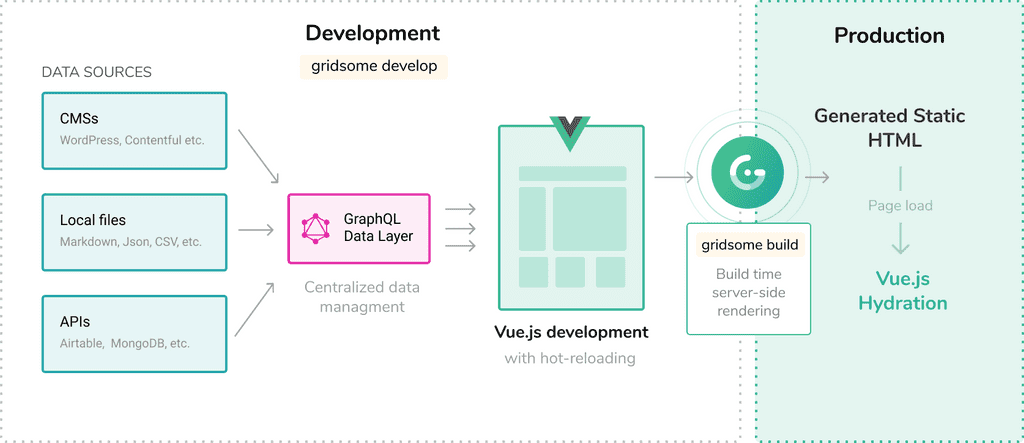
Gridsome

This guide will help you get started using Netlify CMS and Gridsome.

How to install Gridsome

1. Install Gridsome CLI tool

# Using Yarn
yarn global add @gridsome/cli

# Using NPM
npm install --global @gridsome/cli

Create a new Gridsome website

# To create a new project run
gridsome create gridsome-netlify-blog

# Then navigate to the project folder
cd gridsome-netlify-blog

# To start local dev server at http://localhost:8080
gridsome develop

Install Netlify CMS the required dependencies to your project


# Using Yarn
yarn add netlify-cms gridsome-plugin-netlify-cms @gridsome/source-filesystem @gridsome/transformer-remark

# Using NPM
npm add netlify-cms gridsome-plugin-netlify-cms @gridsome/source-filesystem @gridsome/transformer-remark

Now that the plugins are installed, it’s time to setup the configuration. Open the gridsome.config.js file and update its content to:

module.exports = {
  siteName: 'Gridsome',
  transformers: {
    remark: {
      externalLinksTarget: '_blank',
      externalLinksRel: ['nofollow', 'noopener', 'noreferrer'],
      anchorClassName: 'icon icon-link'
    }
  },

  plugins: [
    {
      use: '@gridsome/source-filesystem',
      options: {
        path: 'posts/**/*.md',
        typeName: 'Post'
      }
    },
    {
      use: `gridsome-plugin-netlify-cms`,
      options: {
        publicPath: `/admin`
      }
    },
  ]
}

Please read gridsome-plugin-netlify-cms, transformer-remark for more information.

Netlify CMS setup

  1. Create an admin directory inside the src
  2. Create an uploads directory inside the root of your project
  3. Add index.html, index.js and a config.yml file to your admin directory

Your index.html should look like this:

<!DOCTYPE html>
<html>
  <head>
    <meta charset="utf-8" />
    <meta name="viewport" content="width=device-width, initial-scale=1.0" />
    <title>Netlify CMS</title>
  </head>
  <body>
    <script src="index.js" type="module"></script>
  </body>
</html>

Your index.js should look like this:

import CMS from "netlify-cms"

Your config.yml for GitHub should look like this:

backend:
  name: git-gateway
  branch: main # Branch to update (optional; defaults to master)

media_folder: "static/uploads"
public_folder: "/uploads"

collections:
  - name: "posts"
    label: "Posts"
    folder: "posts"
    create: true
    slug: "{{slug}}"
    fields:
      - {label: "Title", name: "title", widget: "string"}
      - {label: "Excerpt", name: "excerpt", widget: "string"}
      - {label: "Publish Date", name: "date", widget: "datetime"}
      - {label: "Body", name: "body", widget: "markdown"}

Push to GitHub

It’s now time to commit your changes and push to GitHub.

git init
git add .
git commit -m "Initial Commit"
git remote add origin https://github.com/YOUR_USERNAME/NEW_REPO_NAME.git
git push -u origin main

Add your repo to Netlify

Go to Netlify and select ‘New Site from Git’. Select GitHub and the repository you just pushed to. Click Configure Netlify on GitHub and give access to your repository. Finish the setup by clicking Deploy Site. Netlify will begin reading your repository and starting building your project.

Enable Identity and Git Gateway

Netlify’s Identity and Git Gateway services allow you to manage CMS admin users for your site without requiring them to have an account with your Git host or commit access on your repo. From your site dashboard on Netlify:

  1. Go to Settings > Identity, and select Enable Identity service.
  2. Under Registration preferences, select Open or Invite only. In most cases, you want only invited users to access your CMS, but if you’re just experimenting, you can leave it open for convenience.
  3. If you’d like to allow one-click login with services like Google and GitHub, check the boxes next to the services you’d like to use, under External providers.
  4. Scroll down to Services > Git Gateway, and click Enable Git Gateway. This authenticates with your Git host and generates an API access token. In this case, we’re leaving the Roles field blank, which means any logged in user may access the CMS. For information on changing this, check the Netlify Identity documentation.

Start publishing

It’s time to create your first blog post. Login to your site’s /admin/ page and create a new post by clicking New Blog. Add a title, a date and some text. When you click Publish, a new commit will be created in your GitHub repo with this format Create Blog “year-month-date-title”.

Then Netlify will detect that there was a commit in your repo, and will start rebuilding your project. When your project is deployed you’ll be able to see the post you created.

Your basic blog scaffold is done, now you can query data from the GraphQL server just like you’re working with the filesystem. For more info read querying data.

Authentication & Backends

Netlify CMS stores content in your GitHub, GitLab, or Bitbucket repository. In order for this to work, it must authenticate with your Git host. In most cases that requires a server. We have a few options for handling this.

Note: If you prefer to run your own authentication server, check out the section on external OAuth clients.

Note: Some static site generators have plugins for optimized integration with Netlify CMS, and starter templates may utilize these plugins. If you’re using a starter template, read the template documentation before proceeding, as their instructions may differ.

Git Gateway with Netlify Identity

Git Gateway is a Netlify open source project that allows you to add editors to your site CMS without giving them direct write access to your GitHub or GitLab repository. (For Bitbucket repositories, use the Bitbucket backend instead.) The Netlify Identity service can handle the authentication and provides a simple interface for user management. The Netlify CMS featured templates are working examples of this backend.

To use it in your own project stored on GitHub or GitLab, follow these steps:

  1. Head over to the Netlify Identity docs and follow the steps to get started.
  2. Add the following lines to your Netlify CMS config.yml file:
    backend:
      name: git-gateway
      accept_roles: #optional - accepts all users if left out
        - admin
        - editor
  3. Optionally, you can assign roles to users in your Netlify dashboard, and then limit which roles can access the CMS by defining the accept_roles field as shown in the example above. Otherwise accept_roles can be left out, and all Netlify Identity users on your site have access.

Reconnect after Changing Repository Permissions

If you change ownership on your repository, or convert a repository from public to private, you may need to reconnect Git Gateway with proper permissions. Find further instructions in the Netlify Git Gateway docs.

Git Gateway without Netlify

You can use Git Gateway without Netlify by setting up your own Git Gateway server and connecting it with your own instance of GoTrue (the open source microservice that powers Netlify Identity), or with any other identity service that can issue JSON Web Tokens (JWT).

To configure in Netlify CMS, use the same backend settings in your Netlify CMS config.yml file as described in Step 2 of the Git Gateway with Netlify Identity instructions above.

GitHub Backend

For repositories stored on GitHub, the github backend allows CMS users to log in directly with their GitHub account. Note that all users must have push access to your content repository for this to work.

Because Github requires a server for authentication, Netlify facilitates basic GitHub authentication.

To enable basic GitHub authentication:

  1. Follow the authentication provider setup steps in the Netlify docs.
  2. Add the following lines to your Netlify CMS config.yml file:
    backend:
      name: github
      repo: owner-name/repo-name # Path to your GitHub repository

Specifying a status for deploy previews

The GitHub backend supports deploy preview links. Netlify CMS checks the context of a commit’s statuses and infers one that seems to represent a deploy preview. If you need to customize this behavior, you can specify which context to look for using preview_context:

```yaml
backend:
  name: github
  repo: my/repo
  preview_context: my-provider/deployment
```

The above configuration would look for the status who’s "context" is "my-provider/deployment".

GitLab Backend

For repositories stored on GitLab, the gitlab backend allows CMS users to log in directly with their GitLab account. Note that all users must have push access to your content repository for this to work.

The GitLab API allows for two types of OAuth2 flows:

  • Web Application Flow, which works much like the GitHub OAuth flow described above.
  • Implicit Grant, which operates without the need for an authentication server.

Web Application Flow with Netlify

When using GitLab’s Web Application Flow for authentication, you can use Netlify to handle the server-side authentication requests.

To enable it:

  1. Follow the GitLab docs to add your Netlify CMS instance as an OAuth application. For the Redirect URI, enter https://api.netlify.com/auth/done, and check the box for api scope.
  2. Follow the Netlify docs to add your new GitLab Application ID and Secret to your Netlify site dashboard.
  3. In your repository, add the following lines to your Netlify CMS config.yml file:
    backend:
      name: gitlab
      repo: owner-name/repo-name # Path to your GitLab repository

Client-Side Implicit Grant (GitLab)

With GitLab’s Implicit Grant, users can authenticate with GitLab directly from the client. To do this:

  1. Follow the GitLab docs to add your Netlify CMS instance as an OAuth application. For the Redirect URI, enter the address where you access Netlify CMS, for example, https://www.mysite.com/admin/. For scope, select api.
  2. GitLab gives you an Application ID. Copy this ID and enter it in your Netlify CMS config.yml file, along with the following settings:
    backend:
      name: gitlab
      repo: owner-name/repo-name # Path to your GitLab repository
      auth_type: implicit # Required for implicit grant
      app_id: your-app-id # Application ID from your GitLab settings

    You can also use Implicit Grant with a self-hosted GitLab instance. This requires adding api_root, base_url, and auth_endpoint fields:

    backend:
      name: gitlab
      repo: owner-name/repo-name # Path to your GitLab repository
      auth_type: implicit # Required for implicit grant
      app_id: your-app-id # Application ID from your GitLab settings
      api_root: https://my-hosted-gitlab-instance.com/api/v4
      base_url: https://my-hosted-gitlab-instance.com
      auth_endpoint: oauth/authorize

Note: In both cases, GitLab also provides you with a client secret. You should never store this in your repo or reveal it in the client.

Bitbucket Backend

For repositories stored on Bitbucket, the bitbucket backend allows CMS users to log in directly with their Bitbucket account. Note that all users must have write access to your content repository for this to work.

To enable it:

  1. Follow the authentication provider setup steps in the Netlify docs.
  2. Add the following lines to your Netlify CMS config.yml file:
    backend:
      name: bitbucket
      repo: owner-name/repo-name # Path to your Bitbucket repository

Client-Side Implicit Grant (Bitbucket)

With Bitbucket’s Implicit Grant, users can authenticate with Bitbucket directly from the client. To do this:

  1. Follow the authentication provider setup steps in the Netlify docs, make sure you allow ‘Account/Read’ and ‘Repository/Write’.
  2. Bitbucket gives you a Key. Copy this Key and enter it in your Netlify CMD config.yml file, along with the following settings:
    backend:
      name: bitbucket
      repo: owner-name/repo-name
      branch: default
      auth_type: implicit
      app_id: # The Key from your Bitbucket settings

Warning: With Bitbucket implicit grant, the authentication is valid for 1 hour only. After that, the user has to login again, which can lead to data loss if the expiration occurs while content is being edited.

Test Repo Backend

You can use the test-repo backend to try out Netlify CMS without connecting to a Git repo. With this backend, you can write and publish content normally, but any changes will disapear when you reload the page. This backend powers the Netlify CMS demo site.

To enable this backend, add the following lines to your Netlify CMS config.yml file:

backend:
  name: test-repo

External OAuth Clients

If you would like to facilitate your own OAuth authentication rather than use Netlify’s service or implicit grant, you can use one of the community-maintained projects below. Feel free to submit a pull request if you’d like to add yours!

Author Supported Git hosts Language(s)/Platform(s) Link
@vencax GitHub, GitHub Enterprise Node.js Repo
@igk1972 GitHub, GitHub Enterprise Go Repo
@davidejones GitHub, GitHub Enterprise Python Repo
@marcelkornblum GitHub, GitHub Enterprise Google AppEngine with Python Repo
@marksteele GitHub, GitHub Enterprise Serverless Repo, Blog
@Herohtar GitHub, GitHub Enterprise Firebase Cloud Function Repo

Check each project’s documentation for instructions on how to configure it.

Options

Netlify CMS backends allow some additional fields for certain use cases. A full reference is below. Note that these are properties of the backend field, and should be nested under that field.

Field Default Description
repo none Required for github, gitlab, and bitbucket backends; ignored by git-gateway. Follows the pattern [org-or-username]/[repo-name].
accept_roles none git-gateway only. Limits CMS access to your defined array of user roles. Omitting this field gives access to all registered users.
branch master The branch where published content is stored. All CMS commits and PRs are made to this branch.
api_root https://api.github.com (GitHub), https://gitlab.com/api/v4 (GitLab), or https://api.bitbucket.org/2.0 (Bitbucket) The API endpoint. Only necessary in certain cases, like with GitHub Enterprise or self-hosted GitLab.
site_domain location.hostname (or cms.netlify.com when on localhost) Sets the site_id query param sent to the API endpoint. Non-Netlify auth setups will often need to set this for local development to work properly.
base_url https://api.netlify.com (GitHub, Bitbucket) or https://gitlab.com (GitLab) OAuth client hostname (just the base domain, no path). Required when using an external OAuth server or self-hosted GitLab.
auth_endpoint auth (GitHub, Bitbucket) or oauth/authorize (GitLab) Path to append to base_url for authentication requests. Optional.

Backends Overview

Overview

A backend is JavaScript code that allows Netlify CMS to communicate with a service that stores content – typically a Git host like GitHub or GitLab. It provides functions that Netlify CMS can use to do things like read and update files using API’s provided by the service.

Backend Configuration

Individual backends should provide their own configuration documentation, but there are some configuration options that are common to multiple backends. A full reference is below. Note that these are properties of the backend field, and should be nested under that field.

Field Default Description
repo none Required for github, gitlab, and bitbucket backends; ignored by git-gateway. Follows the pattern [org-or-username]/[repo-name].
branch master The branch where published content is stored. All CMS commits and PRs are made to this branch.
api_root https://api.github.com (GitHub), https://gitlab.com/api/v4 (GitLab), or https://api.bitbucket.org/2.0 (Bitbucket) The API endpoint. Only necessary in certain cases, like with GitHub Enterprise or self-hosted GitLab.
site_domain location.hostname (or cms.netlify.com when on localhost) Sets the site_id query param sent to the API endpoint. Non-Netlify auth setups will often need to set this for local development to work properly.
base_url https://api.netlify.com (GitHub, Bitbucket) or https://gitlab.com (GitLab) OAuth client hostname (just the base domain, no path). Required when using an external OAuth server or self-hosted GitLab.
auth_endpoint auth (GitHub, Bitbucket) or oauth/authorize (GitLab) Path to append to base_url for authentication requests. Optional.
cms_label_prefix netlify-cms/ Pull (or Merge) Requests label prefix when using editorial workflow. Optional.

Creating a New Backend

Anyone can write a backend, but we don’t yet have a finalized and documented API. If you would like to write your own backend for a service that does not have one currently, we recommend using the GitHub backend as a reference for API and best practices.

Take a test drive

You can easily try out Netlify CMS by running it on a pre-configured starter site. Our example in the intro is the Kaldi small business Hugo template. Use the deploy button below to build and deploy your own copy of the repository: Deploy to Netlify.

Authenticate with GitHub

When the deploy completes, you can see your site, but in order to use the CMS, you’ll need to set up authentication with GitHub.

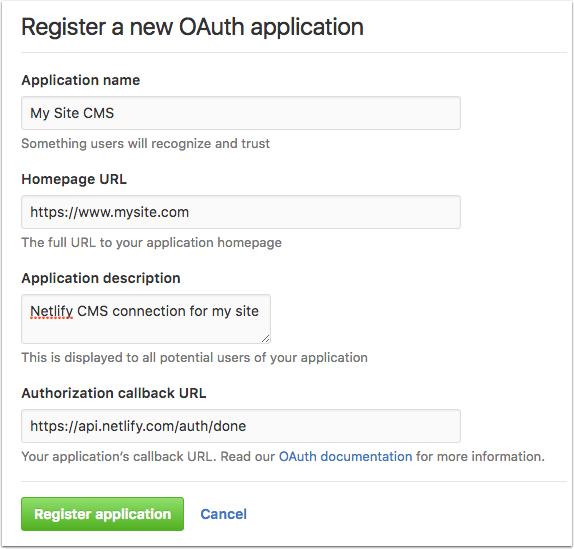
First, register the site CMS as an authorized application with your GitHub account:

  1. Go to your account Settings page on GitHub, and click Oauth Applications under Developer Settings (or use this shortcut).
  2. Click Register a new application.
  3. For the Authorization callback URL, enter https://api.netlify.com/auth/done. The other fields can contain anything you want.

GitHub Oauth Application setup example

When you complete the registration, you’ll be given a Client ID and a Client Secret for the app. You’ll need to add these to your Netlify project:

  1. Go to your Netlify dashboard and click on your project.
  2. Click the Access tab.
  3. Under Authentication Providers, click Install Provider.
  4. Select GitHub and enter the Client ID and Client Secret, then save.

Access the CMS

With the site deployed and authentication in place, you’ll be able to enter the CMS by going to the URL of your new site and appending /admin.