Docusaurus

This guide instructs you on how to integrate Netlify CMS with Docusaurus.

Before you begin

  • Sign up for GitHub and Netlify.
  • Download Node.js version 14 or above.
  • Install the GitHub CLI.
  • Install and authenticate the Netlify CLI.
Create a new Docusaurus project

# 1. Use Docusaurus to create a site scaffold.
npx create-docusaurus@latest my-website classic

# 2. Run the development server.
cd my-website
npm run start

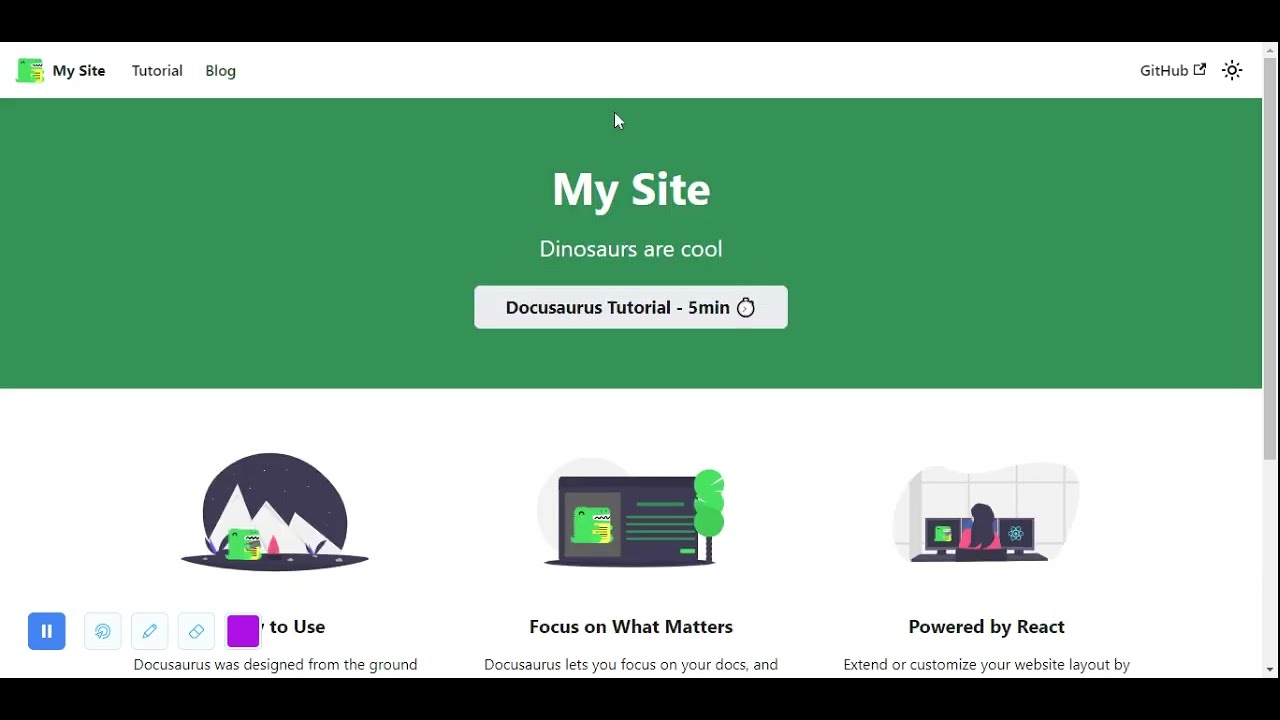
A browser window opens at http://localhost:3000.

The development server now serves your website at http://localhost:3000. As you edit the source files in /my-website/, you can visit http://localhost:3000 to preview your changes.

Push your project to GitHub

Netlify CMS requires a backend to store content. Netlify CMS supports using Git hosts, like GitHub or GitLab, as backends. This guide uses GitHub.

# 1. Initialize your local Git repository.  
git init

# 2. Rename your initial branch to match GitHub.
git branch -m main

# 3. Stage all your local files to your repository.
git add . 

# 4. Commit your staged changes.
git commit -m 'Initial commit'

# 5. Create a remote repository on GitHub using the GitHub CLI.
gh repo create my-website

Don’t add a license or a .gitignore. Do add an “origin” git remote.

# 6. Update your remote repository with your staged changes. 
git push -u origin main

Publish your project using Netlify CLI

  1. Connect Netlify CLI to your GitHub repository.
    netlify init
  2. Choose Create & configure a new site.
  3. Choose your team and site name.
  4. Choose yarn build for your build command.
  5. Choose build for your deployment directory.

Choose the default option for everything else.

Your website is now deployed. Netlify provides you with a randomly generated domain name. Run netlify open --site to view your deployed site.

Add Netlify CMS to your project

Before you begin

  1. Remove all existing posts from /blog.
    rm -rf ./blog/*
  2. Create a new blog post post titled 2021-11-15-first-blog-post.md.
    touch ./blog/2021-11-15-first-blog-post.md
  3. Edit 2021-11-15-first-blog-post.md to look like this:
    ---
    title: First Blog Post
    slug: first-blog-post
    tags:
      - foo
      - bar
    authors:
      - name: Garrison McMullen
        title: Instruction Writer
        url: https://github.com/garrison0
        image_url: https://avatars.githubusercontent.com/u/4089393?v=4
    ---
    Lorem ipsum dolor sit amet, consectetur adipiscing elit. Pellentesque elementum dignissim ultricies. Fusce rhoncus ipsum tempor eros aliquam consequat.

Procedure

  1. Create an admin directory inside static.
    cd static
    mkdir admin
  2. In the admin directory, create a config.yml file and an index.html file.
    cd admin
    touch config.yml
    touch index.html
  3. Edit index.html to look like this:
    <!doctype html>
    <html>
    <head>
      <meta charset="utf-8" />
      <meta name="viewport" content="width=device-width, initial-scale=1.0" />
      <title>Content Manager</title>
    </head>
    <body>
      <!-- Include the script that builds the page and powers Netlify CMS -->
      <script src="https://unpkg.com/netlify-cms@^2.0.0/dist/netlify-cms.js"></script>
    </body>
    </html>

    index.html displays the Netlify CMS admin interface. You’ll use the admin interface to edit your blog posts.

  4. Edit config.yml to look like this:
    backend:
      name: github
      branch: main 
      repo: <your-github>/my-website
    
    # These lines should *not* be indented
    media_folder: "static/img" # Media files will be stored in the repo under static/images/uploads
    public_folder: "/img/" # The src attribute for uploaded media will begin with /images/uploads
    
    collections:
    - name: blog
      label: "blog"
      folder: blog
      identifier_field: title
      extension: md
      widget: "list"
      create: true
      slug: "{{year}}-{{month}}-{{day}}-{{slug}}" # Filename template, e.g., YYYY-MM-DD-title.md
      fields:
        - { name: title, label: Title, widget: string }
        - { name: body, label: Body, widget: markdown }
        - { name: slug, label: Slug, widget: string }
        - label: "Tags"
          name: "tags"
          widget: "list"
        - label: "Authors"
          name: "authors" 
          widget: "list"
          fields:
            - { name: name, label: Name, widget: string }
            - { name: title, label: Title, widget: string } 
            - { name: url, label: URL, widget: string } 
            - { name: imageUrl, label: ImageURL, widget: string } 

    config.yml specifies what kind of content your blog posts have. The content specification enables Netlify CMS to edit existing posts and create new ones with the same format. To learn more, read about Netlify CMS’ Configuration options.

  5. Visit localhost:3000/adminYou can now view and edit 2021-11-15-first-blog-post.md through the admin interface. You can also create new blog posts.Warning: Any changes you publish through the admin interface will only effect your remote GitHub repository. To retrieve these changes locally, git pull from your local repository.
  6. Commit and push your new changes to your remote repository.
    git add . 
    git commit -m "Add Netlify CMS"
    git push

    Netlify builds and deploys your new changes.

Add GitHub as an authentication provider

Before you can access /admin/ through your Netlify domain, you need to set up an authentication provider. The authentication provider allows Netlify CMS to determine whether users have read and write access to /admin/. This guide uses GitHub credentials for authentication.

Configure GitHub

  1. Create a new GitHub OAuth application.
  2. Enter your Netlify domain as the Homepage URL.
  3. Enter https://api.netlify.com/auth/done as the Authorization callback URL.
  4. Click Register application.
  5. Click Generate a new client secret.
  6. Copy the provided client secret and client ID.

Configure Netlify

  1. On Netlify, under Site Settings > Access control > OAuth > Authentication Providers, click Install provider.
  2. Enter your client secret and client ID from GitHub.
  3. Click Install.

🎉 All done! Now you can access the admin interface through your Netlify URL.
Git Gateway Backend

Git Gateway is a Netlify open source project that allows you to add editors to your site CMS without giving them direct write access to your GitHub or GitLab repository. (For Bitbucket repositories, use the Bitbucket backend instead.)

Git Gateway with Netlify

The Netlify Identity service can handle the authentication and provides a simple interface for user management. The Netlify CMS featured templates are working examples of this backend.

To use it in your own project stored on GitHub or GitLab, follow these steps:

  1. Head over to the Netlify Identity docs and follow the steps to get started.
  2. Add the following lines to your Netlify CMS config.yml file:
backend:
  name: git-gateway

Reconnect after Changing Repository Permissions

If you change ownership on your repository, or convert a repository from public to private, you may need to reconnect Git Gateway with proper permissions. Find further instructions in the Netlify Git Gateway docs.

Git Gateway without Netlify

You can use Git Gateway without Netlify by setting up your own Git Gateway server and connecting it with your own instance of GoTrue (the open source microservice that powers Netlify Identity), or with any other identity service that can issue JSON Web Tokens (JWT).

To configure in Netlify CMS, use the same backend settings in your Netlify CMS config.yml file as described in Step 2 of the Git Gateway with Netlify Identity instructions above.

GitLab Backend

GitLab

For repositories stored on GitLab, the gitlab backend allows CMS users to log in directly with their GitLab account. Note that all users must have push access to your content repository for this to work.

Note: GitLab default branch is protected by default, thus typically requires maintainer permissions in order for users to have push access.

The GitLab API allows for two types of OAuth2 flows:

  • Web Application Flow, which works much like the GitHub OAuth flow described above.
  • Implicit Grant, which operates without the need for an authentication server.

Web Application Flow with Netlify

When using GitLab’s Web Application Flow for authentication, you can use Netlify to handle the server-side authentication requests.

To enable it:

  1. Follow the GitLab docs to add your Netlify CMS instance as an OAuth application. For the Redirect URI, enter https://api.netlify.com/auth/done, and check the box for api scope.
  2. Follow the Netlify docs to add your new GitLab Application ID and Secret to your Netlify site dashboard.
  3. In your repository, add the following lines to your Netlify CMS config.yml file:
backend:
  name: gitlab
  repo: owner-name/repo-name # Path to your GitLab repository

Client-Side Implicit Grant (GitLab)

With GitLab’s Implicit Grant, users can authenticate with GitLab directly from the client. To do this:

  1. Follow the GitLab docs to add your Netlify CMS instance as an OAuth application. For the Redirect URI, enter the address where you access Netlify CMS, for example, https://www.mysite.com/admin/. For scope, select api.
  2. GitLab gives you an Application ID. Copy this ID and enter it in your Netlify CMS config.yml file, along with the following settings:
    backend:
     name: gitlab
     repo: owner-name/repo-name # Path to your GitLab repository
     auth_type: implicit # Required for implicit grant
     app_id: your-app-id # Application ID from your GitLab settings

    You can also use Implicit Grant with a self-hosted GitLab instance. This requires adding api_root, base_url, and auth_endpoint fields:

    backend:
     name: gitlab
     repo: owner-name/repo-name # Path to your GitLab repository
     auth_type: implicit # Required for implicit grant
     app_id: your-app-id # Application ID from your GitLab settings
     api_root: https://my-hosted-gitlab-instance.com/api/v4
     base_url: https://my-hosted-gitlab-instance.com
     auth_endpoint: oauth/authorize

Note: In both cases, GitLab also provides you with a client secret. You should never store this in your repo or reveal it in the client.

Netlify CMS now supports GitLab as a backend

Netlify CMS is releasing support for GitLab as a backend, creating the world’s first completely open source stack for Git-based content editing.

We heard you (and you, and you, and you)! While you want to use Netlify CMS as the headless content management system for your Jamstack projects, all of your code lives in GitLab. Our long-term vision is to be tool-agnostic so you can use whatever tool helps you work best. But while you can already use Netlify CMS with most static site generators, backend support was limited to GitHub.

Immediately after the December release of Netlify CMS 1.0, contributors got to work on improving the API for backend integrations. At the urging of the community, we prioritized support for GitLab. With today’s release of Netlify CMS 1.9.0, you can now use GitLab as the backend for Netlify CMS.

Adding support for GitLab means that millions more developers can now use Netlify CMS with their projects. Seriously — millions. GitLab is used by more than 100,000 organizations like Ticketmaster, Intel, Red Hat, and CERN.

How it works

Netlify CMS is an open source content management system for your Git workflow that enables you to provide editors with a friendly UI and intuitive workflow. You can use it with any static site generator to create faster, more flexible web projects. Content is stored in your GitLab repository alongside your code for easier versioning, multi-channel publishing, and the option to handle content updates directly in Git.

In case you want an even easier way to get started, or just want to poke around in the code, you can use the button below to automatically deploy a starter site that uses the Hugo static site generator along with Netlify CMS.

Lastly, one particularly exciting thing about using GitLab as your backend is that it doesn’t require an authentication server. While the GitHub integration requires a hop to an authentication server (something Netlify provides for most users), GitLab’s implicit auth flow allows you to connect directly from your browser to gitlab.com, or even to your own self-hosted GitLab server!

What’s next

We’re already working toward Bitbucket support and will be releasing it as soon as possible! We’re also focused on the upcoming release of Netlify CMS 2.0, which will bring new image handling features and improvements, and improved APIs for better CMS extensions. We’re also looking for more ideas and helping hands, so if you’re keen to build a smarter, safer, and more scalable CMS, we’d love your contributions. Give us a shout on Twitter or in community chat if you have questions or ideas.

Authentication & Backends

Netlify CMS stores content in your GitHub, GitLab, or Bitbucket repository. In order for this to work, it must authenticate with your Git host. In most cases that requires a server. We have a few options for handling this.

Note: If you prefer to run your own authentication server, check out the section on external OAuth clients.

Note: Some static site generators have plugins for optimized integration with Netlify CMS, and starter templates may utilize these plugins. If you’re using a starter template, read the template documentation before proceeding, as their instructions may differ.

Git Gateway with Netlify Identity

Git Gateway is a Netlify open source project that allows you to add editors to your site CMS without giving them direct write access to your GitHub or GitLab repository. (For Bitbucket repositories, use the Bitbucket backend instead.) The Netlify Identity service can handle the authentication and provides a simple interface for user management. The Netlify CMS featured templates are working examples of this backend.

To use it in your own project stored on GitHub or GitLab, follow these steps:

  1. Head over to the Netlify Identity docs and follow the steps to get started.
  2. Add the following lines to your Netlify CMS config.yml file:
    backend:
      name: git-gateway
      accept_roles: #optional - accepts all users if left out
        - admin
        - editor
  3. Optionally, you can assign roles to users in your Netlify dashboard, and then limit which roles can access the CMS by defining the accept_roles field as shown in the example above. Otherwise accept_roles can be left out, and all Netlify Identity users on your site have access.

Reconnect after Changing Repository Permissions

If you change ownership on your repository, or convert a repository from public to private, you may need to reconnect Git Gateway with proper permissions. Find further instructions in the Netlify Git Gateway docs.

Git Gateway without Netlify

You can use Git Gateway without Netlify by setting up your own Git Gateway server and connecting it with your own instance of GoTrue (the open source microservice that powers Netlify Identity), or with any other identity service that can issue JSON Web Tokens (JWT).

To configure in Netlify CMS, use the same backend settings in your Netlify CMS config.yml file as described in Step 2 of the Git Gateway with Netlify Identity instructions above.

GitHub Backend

For repositories stored on GitHub, the github backend allows CMS users to log in directly with their GitHub account. Note that all users must have push access to your content repository for this to work.

Because Github requires a server for authentication, Netlify facilitates basic GitHub authentication.

To enable basic GitHub authentication:

  1. Follow the authentication provider setup steps in the Netlify docs.
  2. Add the following lines to your Netlify CMS config.yml file:
    backend:
      name: github
      repo: owner-name/repo-name # Path to your GitHub repository

Specifying a status for deploy previews

The GitHub backend supports deploy preview links. Netlify CMS checks the context of a commit’s statuses and infers one that seems to represent a deploy preview. If you need to customize this behavior, you can specify which context to look for using preview_context:

```yaml
backend:
  name: github
  repo: my/repo
  preview_context: my-provider/deployment
```

The above configuration would look for the status who’s "context" is "my-provider/deployment".

GitLab Backend

For repositories stored on GitLab, the gitlab backend allows CMS users to log in directly with their GitLab account. Note that all users must have push access to your content repository for this to work.

The GitLab API allows for two types of OAuth2 flows:

  • Web Application Flow, which works much like the GitHub OAuth flow described above.
  • Implicit Grant, which operates without the need for an authentication server.

Web Application Flow with Netlify

When using GitLab’s Web Application Flow for authentication, you can use Netlify to handle the server-side authentication requests.

To enable it:

  1. Follow the GitLab docs to add your Netlify CMS instance as an OAuth application. For the Redirect URI, enter https://api.netlify.com/auth/done, and check the box for api scope.
  2. Follow the Netlify docs to add your new GitLab Application ID and Secret to your Netlify site dashboard.
  3. In your repository, add the following lines to your Netlify CMS config.yml file:
    backend:
      name: gitlab
      repo: owner-name/repo-name # Path to your GitLab repository

Client-Side Implicit Grant (GitLab)

With GitLab’s Implicit Grant, users can authenticate with GitLab directly from the client. To do this:

  1. Follow the GitLab docs to add your Netlify CMS instance as an OAuth application. For the Redirect URI, enter the address where you access Netlify CMS, for example, https://www.mysite.com/admin/. For scope, select api.
  2. GitLab gives you an Application ID. Copy this ID and enter it in your Netlify CMS config.yml file, along with the following settings:
    backend:
      name: gitlab
      repo: owner-name/repo-name # Path to your GitLab repository
      auth_type: implicit # Required for implicit grant
      app_id: your-app-id # Application ID from your GitLab settings

    You can also use Implicit Grant with a self-hosted GitLab instance. This requires adding api_root, base_url, and auth_endpoint fields:

    backend:
      name: gitlab
      repo: owner-name/repo-name # Path to your GitLab repository
      auth_type: implicit # Required for implicit grant
      app_id: your-app-id # Application ID from your GitLab settings
      api_root: https://my-hosted-gitlab-instance.com/api/v4
      base_url: https://my-hosted-gitlab-instance.com
      auth_endpoint: oauth/authorize

Note: In both cases, GitLab also provides you with a client secret. You should never store this in your repo or reveal it in the client.

Bitbucket Backend

For repositories stored on Bitbucket, the bitbucket backend allows CMS users to log in directly with their Bitbucket account. Note that all users must have write access to your content repository for this to work.

To enable it:

  1. Follow the authentication provider setup steps in the Netlify docs.
  2. Add the following lines to your Netlify CMS config.yml file:
    backend:
      name: bitbucket
      repo: owner-name/repo-name # Path to your Bitbucket repository

Client-Side Implicit Grant (Bitbucket)

With Bitbucket’s Implicit Grant, users can authenticate with Bitbucket directly from the client. To do this:

  1. Follow the authentication provider setup steps in the Netlify docs, make sure you allow ‘Account/Read’ and ‘Repository/Write’.
  2. Bitbucket gives you a Key. Copy this Key and enter it in your Netlify CMD config.yml file, along with the following settings:
    backend:
      name: bitbucket
      repo: owner-name/repo-name
      branch: default
      auth_type: implicit
      app_id: # The Key from your Bitbucket settings

Warning: With Bitbucket implicit grant, the authentication is valid for 1 hour only. After that, the user has to login again, which can lead to data loss if the expiration occurs while content is being edited.

Test Repo Backend

You can use the test-repo backend to try out Netlify CMS without connecting to a Git repo. With this backend, you can write and publish content normally, but any changes will disapear when you reload the page. This backend powers the Netlify CMS demo site.

To enable this backend, add the following lines to your Netlify CMS config.yml file:

backend:
  name: test-repo

External OAuth Clients

If you would like to facilitate your own OAuth authentication rather than use Netlify’s service or implicit grant, you can use one of the community-maintained projects below. Feel free to submit a pull request if you’d like to add yours!

Author Supported Git hosts Language(s)/Platform(s) Link
@vencax GitHub, GitHub Enterprise Node.js Repo
@igk1972 GitHub, GitHub Enterprise Go Repo
@davidejones GitHub, GitHub Enterprise Python Repo
@marcelkornblum GitHub, GitHub Enterprise Google AppEngine with Python Repo
@marksteele GitHub, GitHub Enterprise Serverless Repo, Blog
@Herohtar GitHub, GitHub Enterprise Firebase Cloud Function Repo

Check each project’s documentation for instructions on how to configure it.

Options

Netlify CMS backends allow some additional fields for certain use cases. A full reference is below. Note that these are properties of the backend field, and should be nested under that field.

Field Default Description
repo none Required for github, gitlab, and bitbucket backends; ignored by git-gateway. Follows the pattern [org-or-username]/[repo-name].
accept_roles none git-gateway only. Limits CMS access to your defined array of user roles. Omitting this field gives access to all registered users.
branch master The branch where published content is stored. All CMS commits and PRs are made to this branch.
api_root https://api.github.com (GitHub), https://gitlab.com/api/v4 (GitLab), or https://api.bitbucket.org/2.0 (Bitbucket) The API endpoint. Only necessary in certain cases, like with GitHub Enterprise or self-hosted GitLab.
site_domain location.hostname (or cms.netlify.com when on localhost) Sets the site_id query param sent to the API endpoint. Non-Netlify auth setups will often need to set this for local development to work properly.
base_url https://api.netlify.com (GitHub, Bitbucket) or https://gitlab.com (GitLab) OAuth client hostname (just the base domain, no path). Required when using an external OAuth server or self-hosted GitLab.
auth_endpoint auth (GitHub, Bitbucket) or oauth/authorize (GitLab) Path to append to base_url for authentication requests. Optional.