Git Gateway Backend

Git Gateway is a Netlify open source project that allows you to add editors to your site CMS without giving them direct write access to your GitHub or GitLab repository. (For Bitbucket repositories, use the Bitbucket backend instead.)

Git Gateway with Netlify

The Netlify Identity service can handle the authentication and provides a simple interface for user management. The Netlify CMS featured templates are working examples of this backend.

To use it in your own project stored on GitHub or GitLab, follow these steps:

  1. Head over to the Netlify Identity docs and follow the steps to get started.
  2. Add the following lines to your Netlify CMS config.yml file:
backend:
  name: git-gateway

Reconnect after Changing Repository Permissions

If you change ownership on your repository, or convert a repository from public to private, you may need to reconnect Git Gateway with proper permissions. Find further instructions in the Netlify Git Gateway docs.

Git Gateway without Netlify

You can use Git Gateway without Netlify by setting up your own Git Gateway server and connecting it with your own instance of GoTrue (the open source microservice that powers Netlify Identity), or with any other identity service that can issue JSON Web Tokens (JWT).

To configure in Netlify CMS, use the same backend settings in your Netlify CMS config.yml file as described in Step 2 of the Git Gateway with Netlify Identity instructions above.

Netlify Large Media

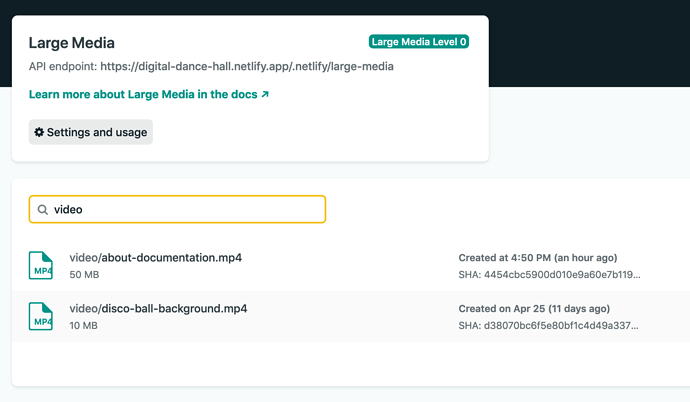
Netlify Large Media is a Git LFS implementation for repositories connected to Netlify sites. This means that you can use Git to work with large asset files like images, audio, and video, without bloating your repository. It does this by replacing the asset files in your repository with text pointer files, then uploading the assets to the Netlify Large Media storage service.

If you have a Netlify site with Large Media enabled, Netlify CMS (version 2.6.0 and above) will handle Large Media asset files seamlessly, in the same way as files stored directly in the repository.

Requirements

To use Netlify Large Media with Netlify CMS, you will need to do the following:

  • Upgrade Netlify CMS to version 2.6.0 or above.
  • Configure Netlify CMS to use the Git Gateway backend with Netlify Identity.
  • Configure the Netlify site and connected repository to use Large Media, following the Large Media docs on Netlify.

When these are complete, you can use Netlify CMS as normal, and the configured asset files will automatically be handled by Netlify Large Media.

Image transformations

All JPEG, PNG, and GIF files that are handled with Netlify Large Media also have access to Netlify’s on-demand image transformation service. This service allows you to request an image to match the dimensions you specify in a query parameter added to the image URL.

You can learn more about this feature in Netlify’s image transformation docs.

In repositories enabled with Netlify Large Media, Netlify CMS will use the image transformation query parameters to load thumbnail-sized images for the media gallery view. This makes images in the media gallery load significantly faster.

Note: When using this option all tracked file types have to be imported into Large Media. For example if you track *.jpg but still have jpg-files that are not imported into Large Media the backend will throw an error. Check the netlify docs on how to add previously committed files to Large Media.

You can disable the automatic image transformations with the use_large_media_transforms_in_media_library configuration setting, nested under backend in the CMS config.yml file:

backend:
  name: git-gateway
  ## Set to false to prevent transforming images in media gallery view
  use_large_media_transforms_in_media_library: false

Jekyll

Introduction

This section will help you integrate Netlify CMS with a new or existing Jekyll project.

Jekyll is a blog-aware static site generator built with Ruby. Github Pages are powered by Jekyll, making it a popular choice for developer blogs and project pages.

If you’re starting a new project, the fastest route to publishing on a Jekyll website with Netlify CMS is to deploy a template on Netlify.

Setup

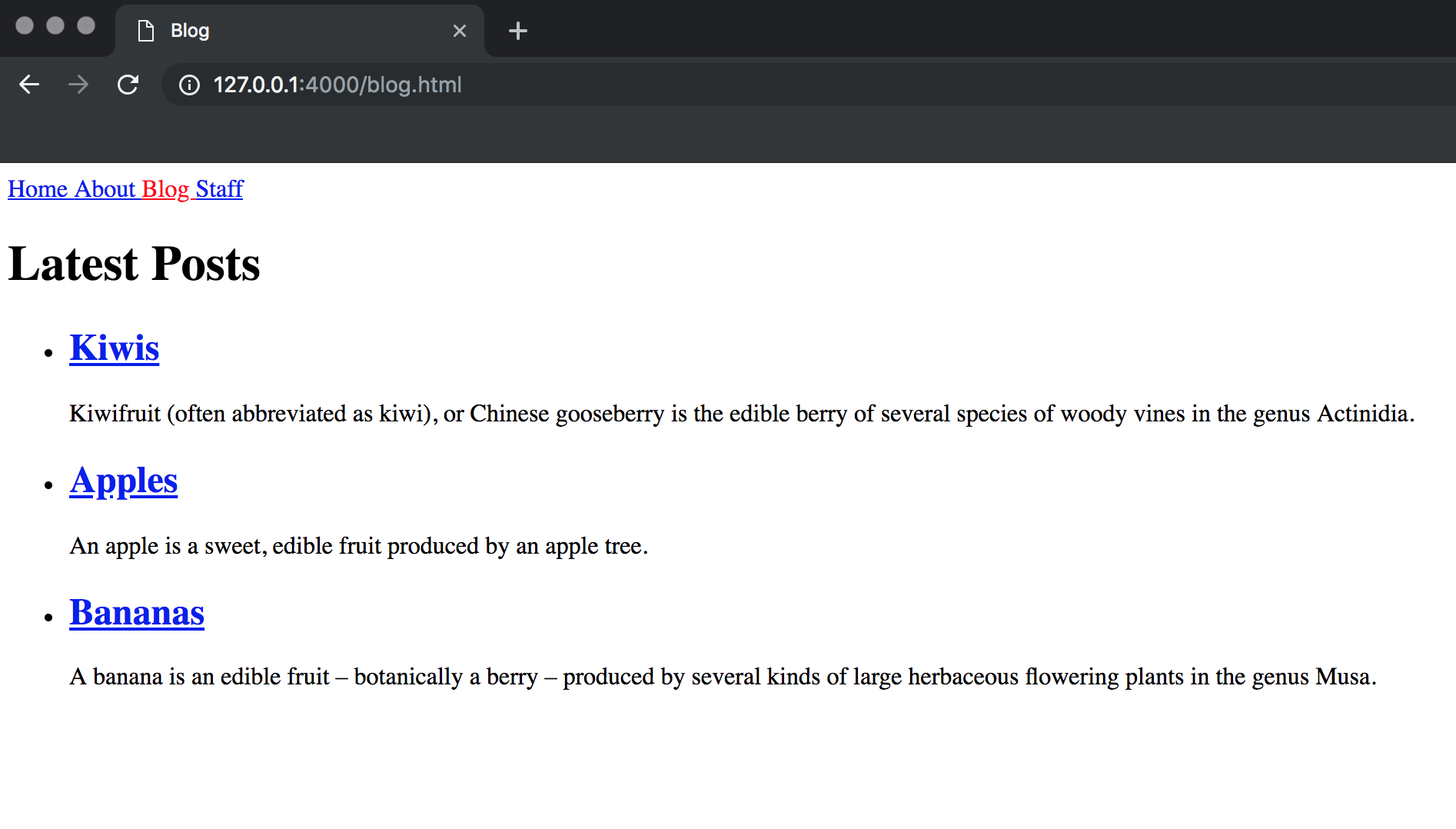
This guide will use the blog you get if you follow the really excellent official Jekyll step by step tutorial as a starting point. If you’re new to Jekyll – I recommended you start by following the tutorial so you know your way around your new blog. Otherwise you can clone this repo and checkout the without-cms branch.
Add Netlify CMS

Add admin/index.html

Create a file admin/index.html in the root of your repo – it should look like this:

<!-- admin/index.html -->
<!DOCTYPE html>
<html>
  <head>
    <meta charset="utf-8" />
    <meta name="viewport" content="width=device-width, initial-scale=1.0" />
    <title>Content Manager</title>
    <!-- Include the identity widget -->
    <script src="https://identity.netlify.com/v1/netlify-identity-widget.js" type="text/javascript"></script>
  </head>
  <body>
    <!-- Include the script that builds the page and powers Netlify CMS -->
    <script src="https://unpkg.com/netlify-cms@^2.0.0/dist/netlify-cms.js"></script>
  </body>
</html>

Add admin/config.yml

Create a file admin/config.yml in the root of your repo – it should look like this:

# config.yml

backend:
  name: git-gateway
  branch: main # Branch to update (optional; defaults to master)
media_folder: 'assets/uploads'
collections:
  - name: 'blog'
    label: 'Blog'
    folder: '_posts/'
    fields:
      - { name: Title }

Enable authentication for CMS users

Netlify CMS stores content in your online Git repository. Therefore, to make content changes, users need to authenticate with the corresponding Git provider to prove that they have read and write access to that content.

Follow the directions in the Introduction section to enable Netlify Identity and Git Gateway services for the backend, then add the Identity widget to render a login portal on the frontend.

CMS Configuration

Blog Collection

We’ll start by updating the blog collection. Blogging is baked into Jekyll, and the _posts/ directory uses some special conventions we’ll need to keep in mind as we configure Netlify CMS. Copy and paste the following into your config.yml.

collections:
  - name: 'blog'
    label: 'Blog'
    folder: '_posts/'
    create: true
    slug: '{{year}}-{{month}}-{{day}}-{{slug}}'
    editor:
      preview: false
    fields:
      - { label: 'Layout', name: 'layout', widget: 'hidden', default: 'post' }
      - { label: 'Title', name: 'title', widget: 'string' }
      - { label: 'Publish Date', name: 'date', widget: 'datetime' }
      - { label: 'Body', name: 'body', widget: 'markdown' }

A few things to note.

  • We set the slug to '{{year}}-{{month}}-{{day}}-{{slug}}' because Jekyll requires this format for blog posts. year, month, and day will be extracted from the date field, and slug will be generated from the title field.
  • We added editor configuration with a field preview: false. This will eliminate the preview pane. Because Jekyll uses Liquid templates, there currently isn’t a good way to provide a preview of pages as you update the content.
  • The layout field default is set to post so Jekyll knows to use _layouts/post.html when it renders a post. This field is hidden because we want all posts to use the same layout.
  • The date and title field will be used by the slug – as noted above, Jekyll relies on the filename to determine a post’s publish date, but Netlify CMS does not pull date information from the filename and requires a frontmatter date field. Note Changing the date or title fields in Netlify CMS will not update the filename. This has a few implications:
    • If you change the date or title fields in Netlify CMS, Jekyll won’t notice
    • You don’t necessarily need to change the date and title fields for existing posts, but if you don’t the filenames and frontmatter will disagree in a way that might be confusing
    • If you want to avoid these issues, use a regular Jekyll collection instead of the special _posts directory

Author Collection

In addition to _posts, the Jekyll tutorial blog includes a collection of authors in the _authors directory. Before we can configure Netlify CMS to work with the authors collection, we’ll need to make a couple tweaks to our Jekyll blog. Here’s the front matter for one of the authors.

short_name: jill
name: Jill Smith
position: Chief Editor

name has special meaning as a unique identifier in Netlify CMS, but as set up now our Jekyll blog is using short_name as the unique identifier for authors. For each author, update the frontmatter like so.

name: jill
display_name: Jill Smith
position: Chief Editor

then update _layouts/author.html, _layouts/post.html and staff.html accordingly.

<!-- _layouts/author.html -->
--- layout: default ---

<h1>{{ page.display_name }}</h1>
<h2>{{ page.position }}</h2>

{{ content }}

<h2>Posts</h2>
<ul>
  {% assign filtered_posts = site.posts | where: 'author', page.name %} {% for post in
  filtered_posts %}
  <li>
    <a href="{{ site.baseurl }}{{ post.url }}">{{ post.title }}</a>
  </li>
  {% endfor %}
</ul>
<!-- _layouts/post.html -->
--- layout: default ---

<h1>{{ page.title }}</h1>

<p>
  {{ page.date | date_to_string }} {% assign author = site.authors | where: 'name', page.author |
  first %} {% if author %} - <a href="{{ author.url }}">{{ author.display_name }}</a>
  {% endif %}
</p>

{{ content }}
<!-- staff.html -->
--- layout: default ---

<h1>Staff</h1>

<ul>
  {% for author in site.authors %}
  <li>
    <h2>
      <a href="{{ site.baseurl }}{{ author.url }}">{{ author.display_name }}</a>
    </h2>
    <h3>{{ author.position }}</h3>
    <p>{{ author.content | markdownify }}</p>
  </li>
  {% endfor %}
</ul>

Next, copy and paste the following into the collections array in config.yml below the blog collection.

- name: 'authors'
  label: 'Authors'
  folder: '_authors/'
  create: true
  editor:
    preview: false
  fields:
    - { label: 'Layout', name: 'layout', widget: 'hidden', default: 'author' }
    - { label: 'Short Name', name: 'name', widget: 'string' }
    - { label: 'Display Name', name: 'display_name', widget: 'string' }
    - { label: 'Position', name: 'position', widget: 'string' }
    - { label: 'Body', name: 'body', widget: 'markdown' }

Now that we have the authors collection configured, we can add an author field to the blog collection. We’ll use the relation widget to define the relationship between blog posts and authors.

# updated fields in blog collection configuration
fields:
  - { label: 'Layout', name: 'layout', widget: 'hidden', default: 'post' }
  - { label: 'Title', name: 'title', widget: 'string' }
  - { label: 'Publish Date', name: 'date', widget: 'datetime' }
  - {
      label: 'Author',
      name: 'author',
      widget: 'relation',
      collection: 'authors',
      display_fields: [display_name],
      search_fields: [display_name],
      value_field: 'name',
    }
  - { label: 'Body', name: 'body', widget: 'markdown' }

With that configuration added, you should be able to select the author for a post from a dropdown.

About Page

Our Jekyll blog includes an About page. It would nice to be able to edit that page just like we can edit our blog and author pages. Netlify CMS provides file collections to solve this problem.

Copy and paste the following into the collections array in config.yml

- name: 'pages'
  label: 'Pages'
  editor:
    preview: false
  files:
    - label: 'About Page'
      name: 'about'
      file: 'about.md'
      fields:
        - { label: 'Title', name: 'title', widget: 'hidden', default: 'about' }
        - { label: 'Layout', name: 'layout', widget: 'hidden', default: 'about' }
        - { label: 'Body', name: 'body', widget: 'markdown' }

The last aspect of our Jekyll blog we might want to bring under the control of Netlify CMS is our Navigation menu. Our Jekyll tutorial blog has a file _data/navigation.yml that defines the links rendered by _includes/navigation.html. It looks like this.

# _data/navigation.yml
- name: Home
  link: /
- name: About
  link: /about.html
- name: Blog
  link: /blog.html
- name: Staff
  link: /staff.html

To make this file editable with Netlify CMS, we’ll need to make one minor tweak. The issue is this file contains a yaml array at the top level, but Netlify CMS is designed to work with yaml objects. Update _data/navigation.yml so it looks like so.

# _data/navigation.yml
items:
  - name: Home
    link: /
  - name: About
    link: /about.html
  - name: Blog
    link: /blog.html
  - name: Staff
    link: /staff.html

You’ll need to update _includes/navigation.html accordingly. {% for item in site.data.navigation %} should be changed to {% for item in site.data.navigation.items %}. When you’re done, the nav html should look like this.

<nav>
  {% for item in site.data.navigation.items %}
    <a href="{{ site.baseurl }}{{ item.link }}" {% if page.url == item.link %}style="color: red;"{% endif %}>
      {{ item.name }}
    </a>
  {% endfor %}
</nav>

Finally, add the following to the collections array in config.yml

- name: 'config'
  label: 'Config'
  editor:
    preview: false
  files:
    - label: 'Navigation'
      name: 'navigation'
      file: '_data/navigation.yml'
      fields:
        - label: 'Navigation Items'
          name: 'items'
          widget: 'list'
          fields:
            - { label: Name, name: name, widget: string }
            - { label: Link, name: link, widget: string }

Now you can add, rename, and rearrange the navigation items on your blog.
NextJS

This guide will help you get started using Netlify CMS with NextJS.

Creating a new project

Let’s repeat some of the basics of setting up a simple NextJS project (check out nextjs.org/learn for a more detailed version).

# Create new directory and navigate into it
mkdir awesome-kitties
cd awesome-kitties

# Initialize a new project
npm init -y

# Install required dependencies
npm install --save react react-dom next

# Install webpack loader for Markdown (Use version 3+)
npm install --save-dev frontmatter-markdown-loader

# If using NextJS v11.0.0 or above, @babel/core and @babel/preset-react has to be installed as dependencies of frontmatter-markdown-loader
npm install --save-dev @babel/core @babel/preset-react

# Create folder for pages (default for NextJS), and add a index file
mkdir pages
touch pages/index.js

# Create a folder for content, and a markdown file:
mkdir content
touch content/home.md

# Create a folder for static assets
mkdir public

Next, we need to add some modifications to our package.json file to make it easier to run and deploy our new site:

{
  "scripts": {
    "dev": "next",
    "build": "next build",
    "start": "next start",
    "export": "npm run build && next export"
  }
}

There is a lot of different ways to create and display Markdown content, but to make this as easy as possible we’ll be using a webpack-loader that enables us to load markdown files directly in our React components (frontmatter-markdown-loader).

Add the following content to your content/home.md file:

---
title: Awesome kitties
date: 2019-03-17T19:31:20.591Z
cats:
  - description: 'Maru is a Scottish Fold from Japan, and he loves boxes.'
    name: Maru (まる)
  - description: Lil Bub is an American celebrity cat known for her unique appearance.
    name: Lil Bub
  - description: 'Grumpy cat is an American celebrity cat known for her grumpy appearance.'
    name: Grumpy cat (Tardar Sauce)
---
Welcome to my awesome page about cats of the internet.

This page is built with NextJS, and content is managed in Netlify CMS

Next, we need to tell webpack how to load Markdown files. Create a new next.config.js file at the root of your project with the following content:

module.exports = {
    webpack: (cfg) => {
        cfg.module.rules.push(
            {
                test: /\.md$/,
                loader: 'frontmatter-markdown-loader',
                options: { mode: ['react-component'] }
            }
        )
        return cfg;
    }
}

Almost there! The last thing we need to do is to add some content to our pages/index.js file. With a little help of our webpack loader, we can now easily import Markdown files:

import Head from "next/head"
import { Component } from 'react'
import { attributes, react as HomeContent } from '../content/home.md';

export default class Home extends Component {
  render() {
    let { title, cats } = attributes;
    return (
      <>
        <Head>
          <script src="https://identity.netlify.com/v1/netlify-identity-widget.js"></script>
        </Head>
        <article>
          <h1>{title}</h1>
          <HomeContent />
          <ul>
            {cats.map((cat, k) => (
              <li key={k}>
                <h2>{cat.name}</h2>
                <p>{cat.description}</p>
              </li>
            ))}
          </ul>
        </article>
      </>
    )
  }
}

Great! We now have a page that displays content from our Markdown file. Go ahead and start your development server to test if everything is working:

npm run dev

Adding Netlify CMS

There are many different ways to add Netlify CMS to your project. The easiest is probably just to embed it from a CDN, and that’s exactly what we’re gonna do. To avoid making this guide too complicated, we’re just going to add Netlify into a subfolder inside the /public directory (which is just served as static files by Next):

# Create and navigate into public/admin folder
mkdir -p public/admin
cd public/admin

# Create index.html and config.yml file
touch index.html
touch config.yml

Paste HTML for Netlify CMS into your public/admin/index.html file (check out the Add Netlify To Your Site section for more information)

<!doctype html>
<html>
<head>
  <meta charset="utf-8" />
  <meta name="viewport" content="width=device-width, initial-scale=1.0" />
  <title>Content Manager</title>
  <script src="https://identity.netlify.com/v1/netlify-identity-widget.js"></script>
</head>
<body>
  <!-- Include the script that builds the page and powers Netlify CMS -->
  <script src="https://unpkg.com/netlify-cms@^2.0.0/dist/netlify-cms.js"></script>
</body>
</html>

Notice that we also added the identity widget. This allows sign up when the project is hosted at Netlify.

Paste the following configuration into your public/admin/config.yml file:

backend:
  name: git-gateway
  branch: main # Branch to update (optional; defaults to master)
media_folder: public/img
public_folder: img
collections:
  - name: "pages"
    label: "Pages"
    files:
    - label: "Home"
      name: "home"
      file: "content/home.md"
      fields:
        - { label: "Title", name: "title", widget: "string"}
        - { label: "Publish Date", name: "date", widget: "datetime" }
        - { label: "Body", name: "body", widget: "markdown"}
        - label: 'Cats'
          name: "cats"
          widget: list
          fields:
            - { label: "Name", name: "name", widget: "string"}
            - { label: "Description", name: "description", widget: "text"}

Awesome! Netlify CMS should now be available at localhost:3000/admin/index.html. Unfortunately we can’t edit our content just yet. First we need to move our code into a git repository, and create a new Netlify site.

Tip: If you want to test changes made to your config.yml file locally, swap out “git-gateway” with “test-repo” and navigate to localhost:3000/admin/index.html to view Netlify CMS locally (you can’t make changes or read actual content from Git this way, but it’s great to verify how things will look).

Publishing to GitHub and Netlify

Create a new repository at GitHub (or one of the other supported git services) and follow the instructions on how to push existing files into your new repository.

Now is probably also a good time to add a .gitignore file:

.next/
node_modules/
/npm-debug.log
.DS_Store
out/

When your project is under version control, go to Netlify and select “New Site from Git”. Select GitHub (or whatever service you used in the previous step), and the repository you just pushed to.

Under the final step (Build options, and deploy!), make sure you enter the following:

Field Value
Build command npm run export
Publish directory out

Enable Identity and Git Gateway

Netlify’s Identity and Git Gateway services allow you to manage CMS admin users for your site without requiring them to have an account with your Git host or commit access on your repo. From your site dashboard on Netlify:

  1. Go to Settings > Identity, and select Enable Identity service.
  2. Under Registration preferences, select Open or Invite only. In most cases, you want only invited users to access your CMS, but if you’re just experimenting, you can leave it open for convenience.
  3. If you’d like to allow one-click login with services like Google and GitHub, check the boxes next to the services you’d like to use, under External providers.
  4. Scroll down to Services > Git Gateway, and click Enable Git Gateway. This authenticates with your Git host and generates an API access token. In this case, we’re leaving the Roles field blank, which means any logged in user may access the CMS. For information on changing this, check the Netlify Identity documentation.

Celebrate!

Great job – you did it! Open your new page via the new Netlify URL, and navigate to /admin. If you did everything correct in the previous step, you should now be able to sign up for an account, and log in.

Tip: Signing up with an external provider is the easiest. If you want to sign up by email, you’ll have to set up a redirect in your index.js page (which we won’t be covering in this guide). For more information, have a look at the Add To Your Site section.

Congratulations – you can finally manage your new list of cats!