This guide instructs you on how to integrate Netlify CMS with Docusaurus.
Before you begin
- Sign up for GitHub and Netlify.
- Download Node.js version 14 or above.
- Install the GitHub CLI.
- Install and authenticate the Netlify CLI.
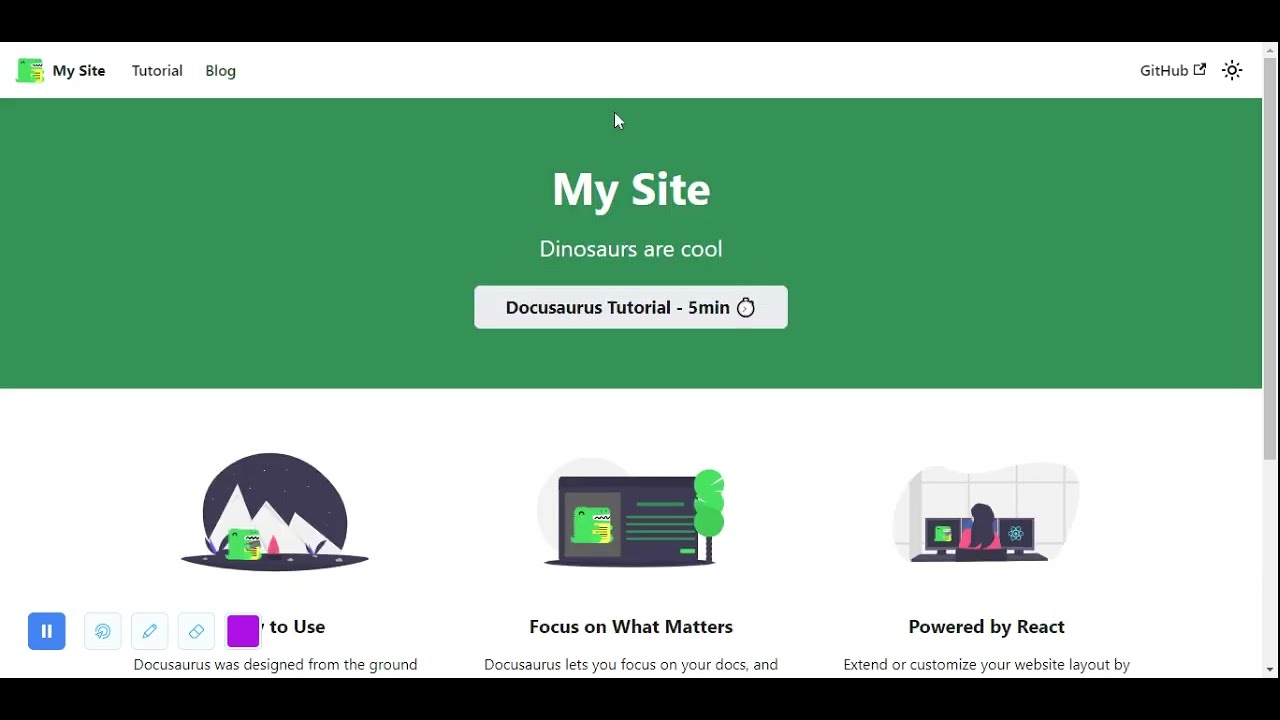
Create a new Docusaurus project
# 1. Use Docusaurus to create a site scaffold.
npx create-docusaurus@latest my-website classic

# 2. Run the development server.
cd my-website
npm run start
A browser window opens at http://localhost:3000.
The development server now serves your website at http://localhost:3000. As you edit the source files in /my-website/, you can visit http://localhost:3000 to preview your changes.
Push your project to GitHub
Netlify CMS requires a backend to store content. Netlify CMS supports using Git hosts, like GitHub or GitLab, as backends. This guide uses GitHub.
# 1. Initialize your local Git repository.
git init

# 2. Rename your initial branch to match GitHub.
git branch -m main

# 3. Stage all your local files to your repository.
git add .

# 4. Commit your staged changes.
git commit -m 'Initial commit'

# 5. Create a remote repository on GitHub using the GitHub CLI.
gh repo create my-website
Don’t add a license or a .gitignore. Do add an “origin” git remote.

# 6. Update your remote repository with your staged changes.
git push -u origin main
Publish your project using Netlify CLI
- Connect Netlify CLI to your GitHub repository.
netlify init - Choose
Create & configure a new site. - Choose your team and site name.
- Choose
yarn buildfor your build command. - Choose
buildfor your deployment directory.

Choose the default option for everything else.
Your website is now deployed. Netlify provides you with a randomly generated domain name. Run netlify open --site to view your deployed site.
Add Netlify CMS to your project
Before you begin
- Remove all existing posts from
/blog.rm -rf ./blog/* - Create a new blog post post titled
2021-11-15-first-blog-post.md.touch ./blog/2021-11-15-first-blog-post.md - Edit
2021-11-15-first-blog-post.mdto look like this:--- title: First Blog Post slug: first-blog-post tags: - foo - bar authors: - name: Garrison McMullen title: Instruction Writer url: https://github.com/garrison0 image_url: https://avatars.githubusercontent.com/u/4089393?v=4 --- Lorem ipsum dolor sit amet, consectetur adipiscing elit. Pellentesque elementum dignissim ultricies. Fusce rhoncus ipsum tempor eros aliquam consequat.
Procedure
- Create an
admindirectory insidestatic.cd static mkdir admin - In the
admindirectory, create aconfig.ymlfile and anindex.htmlfile.cd admin touch config.yml touch index.html - Edit
index.htmlto look like this:<!doctype html> <html> <head> <meta charset="utf-8" /> <meta name="viewport" content="width=device-width, initial-scale=1.0" /> <title>Content Manager</title> </head> <body> <!-- Include the script that builds the page and powers Netlify CMS --> <script src="https://unpkg.com/netlify-cms@^2.0.0/dist/netlify-cms.js"></script> </body> </html>index.htmldisplays the Netlify CMS admin interface. You’ll use the admin interface to edit your blog posts. - Edit
config.ymlto look like this:backend: name: github branch: main repo: <your-github>/my-website # These lines should *not* be indented media_folder: "static/img" # Media files will be stored in the repo under static/images/uploads public_folder: "/img/" # The src attribute for uploaded media will begin with /images/uploads collections: - name: blog label: "blog" folder: blog identifier_field: title extension: md widget: "list" create: true slug: "{{year}}-{{month}}-{{day}}-{{slug}}" # Filename template, e.g., YYYY-MM-DD-title.md fields: - { name: title, label: Title, widget: string } - { name: body, label: Body, widget: markdown } - { name: slug, label: Slug, widget: string } - label: "Tags" name: "tags" widget: "list" - label: "Authors" name: "authors" widget: "list" fields: - { name: name, label: Name, widget: string } - { name: title, label: Title, widget: string } - { name: url, label: URL, widget: string } - { name: imageUrl, label: ImageURL, widget: string }config.ymlspecifies what kind of content your blog posts have. The content specification enables Netlify CMS to edit existing posts and create new ones with the same format. To learn more, read about Netlify CMS’ Configuration options. - Visit
localhost:3000/adminYou can now view and edit2021-11-15-first-blog-post.mdthrough the admin interface. You can also create new blog posts.Warning: Any changes you publish through the admin interface will only effect your remote GitHub repository. To retrieve these changes locally,git pullfrom your local repository. - Commit and push your new changes to your remote repository.
git add .
git commit -m "Add Netlify CMS"
git push
Netlify builds and deploys your new changes.
Add GitHub as an authentication provider
Before you can access /admin/ through your Netlify domain, you need to set up an authentication provider. The authentication provider allows Netlify CMS to determine whether users have read and write access to /admin/. This guide uses GitHub credentials for authentication.
Configure GitHub
- Create a new GitHub OAuth application.
- Enter your Netlify domain as the Homepage URL.
- Enter
https://api.netlify.com/auth/doneas the Authorization callback URL. - Click Register application.
- Click Generate a new client secret.
- Copy the provided client secret and client ID.
Configure Netlify
- On Netlify, under
Site Settings > Access control > OAuth > Authentication Providers, click Install provider. - Enter your client secret and client ID from GitHub.
- Click Install.
🎉 All done! Now you can access the admin interface through your Netlify URL.