Widgets

Widgets define the data type and interface for entry fields. Netlify CMS comes with several built-in widgets. Click the widget names in the sidebar to jump to specific widget details. We’re always adding new widgets, and you can also create your own!

Widgets are specified as collection fields in the Netlify CMS config.yml file. Note that YAML syntax allows lists and objects to be written in block or inline style, and the code samples below include a mix of both.

To see working examples of all of the built-in widgets, try making a ‘Kitchen Sink’ collection item on the CMS demo site. (No login required: click the login button and the CMS will open.) You can refer to the demo configuration code to see how each field was configured.
Common widget options

The following options are available on all fields:

  • required: specify as false to make a field optional; defaults to true
  • hint: optionally add helper text directly below a widget. Useful for including instructions. Accepts markdown for bold, italic, strikethrough, and links.
  • pattern: add field validation by specifying a list with a regex pattern and an error message; more extensive validation can be achieved with custom widgets.
  • Example:
      label: "Title"
      name: "title"
      widget: "string"
      pattern: ['.{12,}', "Must have at least 12 characters"]

Default widgets

Boolean

The boolean widget translates a toggle switch input to a true/false value.

  • Name: boolean
  • UI: toggle switch
  • Data type: boolean
  • Options:
    • default: accepts true or false; defaults to false when required is set to false
  • Example:
    - {label: "Draft", name: "draft", widget: "boolean", default: true}

Code

The code widget provides a code editor (powered by Codemirror) with optional syntax awareness. Can output the raw code value or an object with the selected language and the raw code value.

  • Name: code
  • UI: code editor
  • Data type: string
  • Options:
    • default_language: optional; default language to use
    • allow_language_selection: optional; defaults to false: allows syntax to be changed
    • keys: optional; sets key names for code and lang if outputting an object; defaults to { code: 'code', lang: 'lang' }
    • output_code_only: set to true to output the string value only, defaults to false
  • Example:
    - label: 'Code'
    name: 'code'
    widget: 'code'

Color

The color widget translates a color picker to a color string.

  • Name: color
  • UI: color picker
  • Data type: string
  • Options:
    • default: accepts a string; defaults to an empty string. Sets the default value
    • allowInput: accepts a boolean, defaults to false. Allows manual editing of the color input value
    • enableAlpha: accepts a boolean, defaults to false. Enables Alpha editing
  • Example:
    - { label: 'Color', name: 'color', widget: 'color' }
  • Example:
    - { label: 'Color', name: 'color', widget: 'color', enableAlpha: tru

Date

Deprecation notice: the date widget has been deprecated and will be removed in the next major release. Please use the datetime widget instead.

The date widget translates a date picker input to a date string. For saving date and time together, use the datetime widget.

  • Name: date
  • UI: date picker
  • Data type: Moment.js-formatted date string
  • Options:
    • default: accepts a date string, or an empty string to accept blank input; otherwise defaults to current date
    • format: optional; accepts Moment.js tokens; defaults to raw Date object (if supported by output format)
    • date_format: optional; boolean or Moment.js tokens. If true use default locale format.
    • time_format: optional; boolean or Moment.js tokens. If true use default locale format, false hides time-picker. Defaults to false.
  • Example:
    - label: 'Birthdate'
      name: 'birthdate'
      widget: 'date'
      default: ''
      format: 'MMM Do YY'

DateTime

The datetime widget translates a datetime picker to a datetime string.

  • Name: datetime
  • UI: datetime picker
  • Data type: Moment.js-formatted datetime string
  • Options:
    • default: accepts a datetime string, or an empty string to accept blank input; otherwise defaults to current datetime
    • format: sets storage format; accepts Moment.js tokens; defaults to raw Date object (if supported by output format)
    • date_format: sets date display format in UI; boolean or Moment.js tokens. If true use default locale format.
    • time_format: sets time display format in UI; boolean or Moment.js tokens. If true use default locale format, false hides time-picker.
    • picker_utc: (default: false) when set to true, the datetime picker will display times in UTC. When false, the datetime picker will display times in the user’s local timezone. When using date-only formats, it can be helpful to set this to true so users in all timezones will see the same date in the datetime picker.
  • Example:
    - label: "Start time"
      name: "start"
      widget: "datetime"
      default: ""
      date_format: "DD.MM.YYYY" # e.g. 24.12.2021
      time_format: "HH:mm" # e.g. 21:07
      format: "LLL"
      picker_utc: false

File

The file widget allows editors to upload a file or select an existing one from the media library. The path to the file will be saved to the field as a string.

  • Name: file
  • UI: file picker button opens media gallery
  • Data type: file path string
  • Options:
    • default: accepts a file path string; defaults to null
    • media_library: media library settings to apply when a media library is opened by the current widget
      • allow_multiple: (default: true) when set to false, prevents multiple selection for any media library extension, but must be supported by the extension in use
      • config: a configuration object that will be passed directly to the media library being used – available options are determined by the library
      • media_folder (Beta): file path where uploaded files will be saved specific to this control. Paths can be relative to a collection folder (e.g. files will add the file to a sub-folder in the collection folder) or absolute with reference to the base of the repo which needs to begin with / (e.g /static/files will save uploaded files to the static folder in a sub folder named files)
      • choose_url: (default: true) when set to false, the “Insert from URL” button will be hidden
  • Example:
    - label: "Manual PDF"
      name: "manual_pdf"
      widget: "file"
      default: "/uploads/general-manual.pdf"
      media_library:
        config:
          multiple: true

Hidden

Hidden widgets do not display in the UI. In folder collections that allow users to create new items, you will often want to set a default for hidden fields, so they will be set without requiring an input.

  • Name: hidden
  • UI: none
  • Data type: any valid data type
  • Options:
    • default: accepts any valid data type; recommended for collections that allow adding new items
  • Example:
    - {label: "Layout", name: "layout", widget: "hidden", default: "blog"

Image

The image widget allows editors to upload an image or select an existing one from the media library. The path to the image file will be saved to the field as a string.

  • Name: image
  • UI: file picker button opens media gallery allowing image files (jpg, jpeg, webp, gif, png, bmp, tiff, svg) only; displays selected image thumbnail
  • Data type: file path string
  • Options:
    • default: accepts a file path string; defaults to null
    • media_library: settings to apply when a media library is opened by the current widget
    • allow_multiple: (default: true) when set to false, multiple selection will be disabled even if the media library extension supports it
    • config: a configuration object passed directly to the media library; check the documentation of your media library extension for available config options
    • media_folder (Beta): file path where uploaded images will be saved specific to this control. Paths can be relative to a collection folder (e.g. images will add the image to a sub-folder in the collection folder) or absolute with reference to the base of the repo which needs to begin with / (e.g /static/images will save uploaded images to the static folder in a sub folder named images)
    • choose_url: (default: true) when set to false, the “Insert from URL” button will be hidden
  • Example:
  - label: "Featured Image"
    name: "thumbnail"
    widget: "image"
    choose_url: true
    default: "/uploads/chocolate-dogecoin.jpg"
    media_library:
      config:
        multiple: true

List

The list widget allows you to create a repeatable item in the UI which saves as a list of widget values. map a user-provided string with a comma delimiter into a list. You can choose any widget as a child of a list widget—even other lists.

  • Name: list
  • UI: without any fields specified, the list widget defaults to a text input for entering comma-separated values; with fields specified, the list widget contains a repeatable child widget, with controls for adding, deleting, and re-ordering the repeated widgets.
  • Data type: list of widget values
  • Options:
    • default: you may specify a list of strings to populate the basic text field, or an array of list items for lists using the fields option. If no default is declared when using field or fields, will default to a single list item using the defaults on the child widgets
    • allow_add: false hides the button to add additional items
    • collapsed: when true, the entries collapse by default
    • summary: specify the label displayed on collapsed entries
    • minimize_collapsed: when true, collapsing the list widget will hide all of it’s entries instead of showing summaries
    • label_singular: the text to show on the add button
    • field: a single widget field to be repeated
    • fields: a nested list of multiple widget fields to be included in each repeatable iteration
    • max: maximum number of items in the list
    • min: minimum number of items in the list
    • add_to_top: when true, new entries will be added to the top of the list
  • Example (field/fields not specified):
- label: "Tags"
  name: "tags"
  widget: "list"
  default: ["news"]
  • Example (allow_add marked false):
- label: "Tags"
  name: "tags"
  widget: "list"
  allow_add: false
  default: ["news"]
  • Example (with field):
- label: "Gallery"
  name: "galleryImages"
  widget: "list"
  summary: '{{fields.image}}'
  field: {label: Image, name: image, widget: image}
  • Example (with fields):
- label: "Testimonials"
  name: "testimonials"
  widget: "list"
  summary: '{{fields.quote}} - {{fields.author.name}}'
  fields:
    - {label: Quote, name: quote, widget: string, default: "Everything is awesome!"}
    - label: Author
      name: author
      widget: object
      fields:
        - {label: Name, name: name, widget: string, default: "Emmet"}
        - {label: Avatar, name: avatar, widget: image, default: "/img/emmet.jpg"}
  • Example (with default):
- label: "Gallery"
  name: "galleryImages"
  widget: "list"
  fields:
    - { label: "Source", name: "src", widget: "string" }
    - { label: "Alt Text", name: "alt", widget: "string" }
  default:
    - { src: "/img/tennis.jpg", alt: "Tennis" }
    - { src: "/img/footbar.jpg", alt: "Football" }
  • Example (collapsed marked false):
- label: "Testimonials"
  name: "testimonials"
  collapsed: false
  widget: "list"
  fields:
    - {label: Quote, name: quote, widget: string, default: "Everything is awesome!"}
    - {label: Author, name: author, widget: string }
  • Example (minimize_collapsed marked true):
- label: "Testimonials"
  name: "testimonials"
  minimize_collapsed: true
  widget: "list"
  fields:
    - {label: Quote, name: quote, widget: string, default: "Everything is awesome!"}
    - {label: Author, name: author, widget: string }
  • Example (with max & min):
- label: "Tags"
  name: "tags"
  widget: "list"
  max: 3
  min: 1
  default: ["news"]
  • Example (add_to_top marked true):
- label: "Tags"
  name: "tags"
  widget: "list"
  add_to_top: true

Map

The map widget allows you to edit spatial data using an interactive map. Spatial data for a single piece of geometry saves as a GeoJSON string in WGS84 projection.

  • Name: map
  • UI: interactive map
  • Data type: GeoJSON string
  • Options:
    • decimals: accepts a number to specify precision of saved coordinates; defaults to 7 decimals
    • default: accepts a GeoJSON string containing a single geometry; defaults to an empty string
    • type: accepts one string value of Point, LineString or Polygon; defaults to Point
  • Example:
    - {label: "Location", name: "location", widget: "map" }

Markdown

The markdown widget provides a full fledged text editor allowing users to format text with features such as headings and blockquotes. Users can change their editing view with a handy toggle button.

Please note: If you want to use your markdown editor to fill a markdown file contents after its frontmatter, you’ll have to name the field body so the CMS recognizes it and saves the file accordingly.

  • Name: markdown
  • UI: full text editor
  • Data type: markdown
  • Options:
    • default: accepts markdown content
    • minimal: accepts a boolean value, false by default. Sets the widget height to minimum possible.
    • buttons: an array of strings representing the formatting buttons to display (all shown by default). Buttons include: bold, italic, code, link, heading-one, heading-two, heading-three, heading-four, heading-five, heading-six, quote, bulleted-list, and numbered-list.
    • editor_components: an array of strings representing the names of editor components to display (all shown by default). Netlify CMS includes image and code-block editor components by default, and custom components may be created and registered.
    • modes: an array of strings representing the names of allowed editor modes. Possible modes are raw and rich_text. A toggle button appears in the toolbar when more than one mode is available.
    • sanitize_preview: accepts a boolean value, false by default. Sanitizes markdown preview to prevent XSS attacks – might alter the preview content.
  • Example:
    - { label: 'Blog post content', name: 'body', widget: 'markdown' }

This would render as:

Markdown widget example

Please note: The markdown widget outputs a raw markdown string. Your static site generator may or may not render the markdown to HTML automatically. Consult with your static site generator’s documentation for more information about rendering

Number

The number widget uses an HTML number input, saving the value as a string, integer, or floating point number.

  • Name: number
  • UI: HTML number input
  • Data type: string by default; configured by value_type option
  • Options:
    • default: accepts string or number value; defaults to empty string
    • value_type: accepts int or float; any other value results in saving as a string
    • min: accepts a number for minimum value accepted; unset by default
    • max: accepts a number for maximum value accepted; unset by default
    • step: accepts a number for stepping up/down values in the input; 1 by default
  • Example:
    - label: "Puppy Count"
      name: "puppies"
      widget: "number"
      default: 2
      value_type: "int"
      min: 1
      max: 101
      step: 2

markdown.

Object

The object widget allows you to group multiple widgets together, nested under a single field. You can choose any widget as a child of an object widget—even other objects.

  • Name: object
  • UI: a field containing one or more child widgets
  • Data type: list of child widget values
  • Options:
    • default: you can set defaults within each sub-field’s configuration
    • collapsed: if added and labeled true, collapse the widget’s content by default
    • summary: specify the label displayed when the object is collapsed
    • fields: (required) a nested list of widget fields to include in your widget
  • Example:
    - label: "Profile"
      name: "profile"
      widget: "object"
      summary: '{{fields.name}}: {{fields.birthdate}}'
      fields:
        - {label: "Public", name: "public", widget: "boolean", default: true}
        - {label: "Name", name: "name", widget: "string"}
        - label: "Birthdate"
          name: "birthdate"
          widget: "date"
          default: ""
          format: "MM/DD/YYYY"
        - label: "Address"
          name: "address"
          widget: "object"
          collapsed: true
          fields: 
            - {label: "Street Address", name: "street", widget: "string"}
            - {label: "City", name: "city", widget: "string"}
            - {label: "Postal Code", name: "post-code", widget: "string"

Relation

The relation widget allows you to reference items from another collection. It provides a search input with a list of entries from the collection you’re referencing, and the list automatically updates with matched entries based on what you’ve typed.

  • Name: relation
  • UI: text input with search result dropdown
  • Data type: data type of the value pulled from the related collection item
  • Options:
    • collection: (required) name of the referenced collection (string)
    • value_field: (required) name of the field from the referenced collection whose value will be stored for the relation. For nested fields, separate each subfield with a . (e.g. name.first). For list fields use a wildcard * to target all list items (e.g. categories.*).
    • search_fields: (required) list of one or more names of fields in the referenced collection to search for the typed value. Syntax to reference nested fields is similar to that of value_field.
    • file: allows referencing a specific file when the referenced collection is a files collection (string)
    • display_fields: list of one or more names of fields in the referenced collection that will render in the autocomplete menu of the control. Defaults to value_field. Syntax to reference nested fields is similar to that of value_field.
    • default: accepts any widget data type; defaults to an empty string
    • multiple : accepts a boolean, defaults to false
    • min: minimum number of items; ignored if multiple is false
    • max: maximum number of items; ignored if multiple is false
    • options_length: accepts integer to override number of options presented to user. Defaults to 20.
  • Referencing a folder collection example (assuming a separate “authors” collection with “name” and “twitterHandle” fields with subfields “first” and “last” for the “name” field):
- label: "Post Author"
  name: "author"
  widget: "relation"
  collection: "authors"
  search_fields: ["name.first", "twitterHandle"]
  value_field: "name.first"
  display_fields: ["twitterHandle", "followerCount"]

The generated UI input will search the authors collection by name and twitterHandle, and display each author’s handle and follower count. On selection, the author’s name is saved for the field.

  • String templates example (assuming a separate “authors” collection with “name” and “twitterHandle” fields with subfields “first” and “last” for the “name” field):
- label: "Post Author"
  name: "author"
  widget: "relation"
  collection: "authors"
  search_fields: ['name.first']
  value_field: "{{slug}}"
  display_fields: ["{{twitterHandle}} - {{followerCount}}"]

The generated UI input will search the authors collection by name, and display each author’s handle and follower count. On selection, the author entry slug is saved for the field.

  • Referencing a file collection list field example (assuming a separate “relation_files” collection with a file named “cities” with a list field “cities” with subfields “name” and “id”):
- label: "City"
  name: "city"
  widget: "relation"
  collection: "relation_files"
  file: "cities"
  search_fields: ["cities.*.name"]
  display_fields: ["cities.*.name"]
  value_field: "cities.*.id"

The generated UI input will search the cities file by city name, and display each city’s name. On selection, the city id is saved for the field.

Select

The select widget allows you to pick a string value from a dropdown menu.

  • Name: select
  • UI: select input
  • Data type: string or array
  • Options:
    • default: options must contain any default values
      • string values: accepts a string; defaults to an empty string. Accepts an array of strings and defaults to an empty array with multiple: true enabled.
      • object with label and value fields: accepts an object with label and value field or an array of such objects when multiple: true is enable. Defaults to no value
    • options: (required) there are two ways to list of options for the dropdown menu:
      • string values: the dropdown displays the value directly
      • object with label and value fields: the label displays in the dropdown; the value saves in the file
    • multiple: accepts a boolean; defaults to false
    • min: minimum number of items; ignored if multiple is false
    • max: maximum number of items; ignored if multiple is false
  • Example (options as strings):
- label: "Align Content"
  name: "align"
  widget: "select"
  options: ["left", "center", "right"]

Selecting the center option, will save the value as:

align: "center"
  • Example (options as objects):
- label: "City"
  name: "airport-code"
  widget: "select"
  options:
    - { label: "Chicago", value: "ORD" }
    - { label: "Paris", value: "CDG" }
    - { label: "Tokyo", value: "HND" }

Selecting the Chicago option, will save the value as:

airport-code: "ORD"
  • Example (multiple):
- label: "Tags"
  name: "tags"
  widget: "select"
  multiple: true
  options: ["Design", "UX", "Dev"]
  default: ["Design"]
  • Example (min/max):
- label: "Tags"
  name: "tags"
  widget: "select"
  multiple: true
  min: 1
  max: 3
  options: ["Design", "UX", "Dev"]
  default: ["Design"]

String

The string widget translates a basic text input to a string value. For larger textarea inputs, use the text widget.

  • Name: string
  • UI: text input
  • Data type: string
  • Options:
    • default: accepts a string; defaults to an empty string
  • Example:
    - {label: "Title", name: "title", widget: "string"}

Text

The text widget takes a multiline text field and saves it as a string. For shorter text inputs, use the string widget.

  • Name: text
  • UI: HTML textarea
  • Data type: string
  • Options:
    • default: accepts a string; defaults to an empty string
  • Example:
    - {label: "Description", name: "description", widget: "text"}

 

Docusaurus

This guide instructs you on how to integrate Netlify CMS with Docusaurus.

Before you begin

  • Sign up for GitHub and Netlify.
  • Download Node.js version 14 or above.
  • Install the GitHub CLI.
  • Install and authenticate the Netlify CLI.

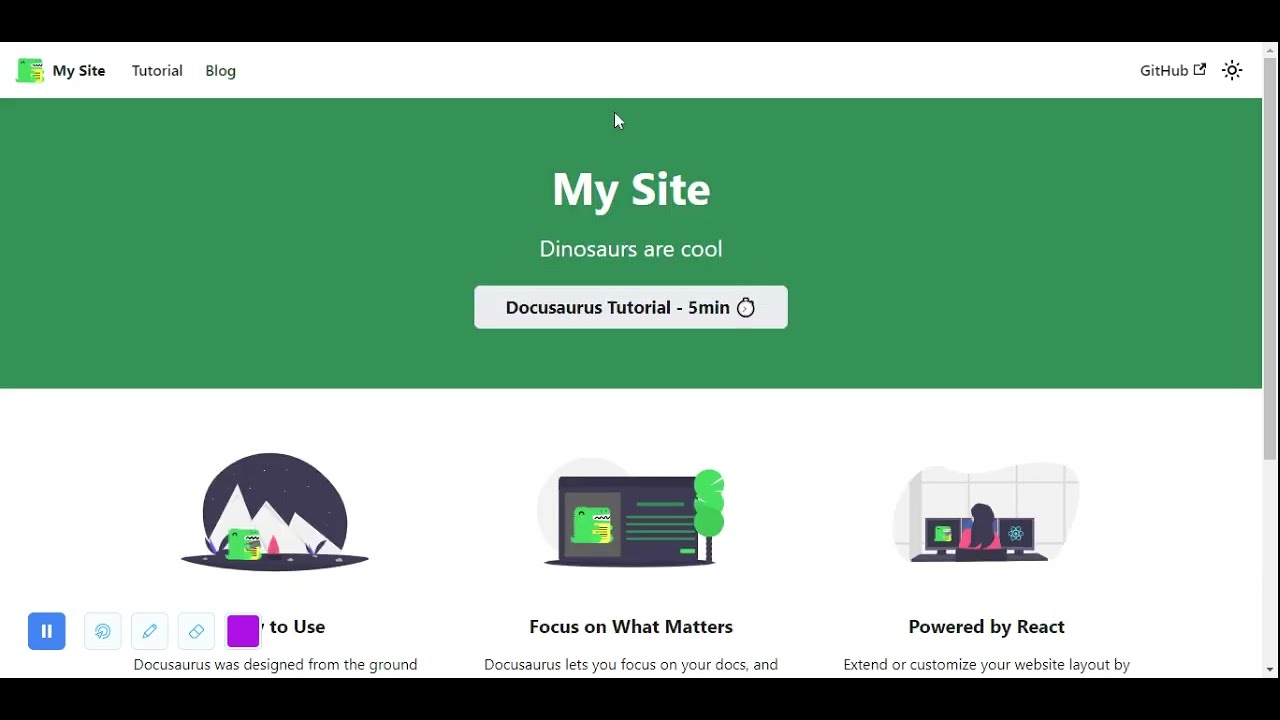
Create a new Docusaurus project

# 1. Use Docusaurus to create a site scaffold.
npx create-docusaurus@latest my-website classic

# 2. Run the development server.
cd my-website
npm run start

A browser window opens at http://localhost:3000.

The development server now serves your website at http://localhost:3000. As you edit the source files in /my-website/, you can visit http://localhost:3000 to preview your changes.

Push your project to GitHub

Netlify CMS requires a backend to store content. Netlify CMS supports using Git hosts, like GitHub or GitLab, as backends. This guide uses GitHub.

# 1. Initialize your local Git repository.  
git init

# 2. Rename your initial branch to match GitHub.
git branch -m main

# 3. Stage all your local files to your repository.
git add . 

# 4. Commit your staged changes.
git commit -m 'Initial commit'

# 5. Create a remote repository on GitHub using the GitHub CLI.
gh repo create my-website

Don’t add a license or a .gitignore. Do add an “origin” git remote.

# 6. Update your remote repository with your staged changes. 
git push -u origin main

Publish your project using Netlify CLI

  1. Connect Netlify CLI to your GitHub repository.
    netlify init
  2. Choose Create & configure a new site.
  3. Choose your team and site name.
  4. Choose yarn build for your build command.
  5. Choose build for your deployment directory.

Choose the default option for everything else.

Your website is now deployed. Netlify provides you with a randomly generated domain name. Run netlify open --site to view your deployed site.

Add Netlify CMS to your project

Before you begin

  1. Remove all existing posts from /blog.
    rm -rf ./blog/*
  2. Create a new blog post post titled 2021-11-15-first-blog-post.md.
    touch ./blog/2021-11-15-first-blog-post.md
  3. Edit 2021-11-15-first-blog-post.md to look like this:
    ---
    title: First Blog Post
    slug: first-blog-post
    tags:
      - foo
      - bar
    authors:
      - name: Garrison McMullen
        title: Instruction Writer
        url: https://github.com/garrison0
        image_url: https://avatars.githubusercontent.com/u/4089393?v=4
    ---
    Lorem ipsum dolor sit amet, consectetur adipiscing elit. Pellentesque elementum dignissim ultricies. Fusce rhoncus ipsum tempor eros aliquam consequat.

Procedure

  1. Create an admin directory inside static.
    cd static
    mkdir admin
  2. In the admin directory, create a config.yml file and an index.html file.
    cd admin
    touch config.yml
    touch index.html
  3. Edit index.html to look like this:
    <!doctype html>
    <html>
    <head>
      <meta charset="utf-8" />
      <meta name="viewport" content="width=device-width, initial-scale=1.0" />
      <title>Content Manager</title>
    </head>
    <body>
      <!-- Include the script that builds the page and powers Netlify CMS -->
      <script src="https://unpkg.com/netlify-cms@^2.0.0/dist/netlify-cms.js"></script>
    </body>
    </html>

    index.html displays the Netlify CMS admin interface. You’ll use the admin interface to edit your blog posts.

  4. Edit config.yml to look like this:
    backend:
      name: github
      branch: main 
      repo: <your-github>/my-website
    
    # These lines should *not* be indented
    media_folder: "static/img" # Media files will be stored in the repo under static/images/uploads
    public_folder: "/img/" # The src attribute for uploaded media will begin with /images/uploads
    
    collections:
    - name: blog
      label: "blog"
      folder: blog
      identifier_field: title
      extension: md
      widget: "list"
      create: true
      slug: "{{year}}-{{month}}-{{day}}-{{slug}}" # Filename template, e.g., YYYY-MM-DD-title.md
      fields:
        - { name: title, label: Title, widget: string }
        - { name: body, label: Body, widget: markdown }
        - { name: slug, label: Slug, widget: string }
        - label: "Tags"
          name: "tags"
          widget: "list"
        - label: "Authors"
          name: "authors" 
          widget: "list"
          fields:
            - { name: name, label: Name, widget: string }
            - { name: title, label: Title, widget: string } 
            - { name: url, label: URL, widget: string } 
            - { name: imageUrl, label: ImageURL, widget: string } 

    config.yml specifies what kind of content your blog posts have. The content specification enables Netlify CMS to edit existing posts and create new ones with the same format. To learn more, read about Netlify CMS’ Configuration options.

  5. Visit localhost:3000/adminYou can now view and edit 2021-11-15-first-blog-post.md through the admin interface. You can also create new blog posts.Warning: Any changes you publish through the admin interface will only effect your remote GitHub repository. To retrieve these changes locally, git pull from your local repository.
  6. Commit and push your new changes to your remote repository.
    git add . 
    git commit -m "Add Netlify CMS"
    git push

    Netlify builds and deploys your new changes.

Add GitHub as an authentication provider

Before you can access /admin/ through your Netlify domain, you need to set up an authentication provider. The authentication provider allows Netlify CMS to determine whether users have read and write access to /admin/. This guide uses GitHub credentials for authentication.

Configure GitHub

  1. Create a new GitHub OAuth application.
  2. Enter your Netlify domain as the Homepage URL.
  3. Enter https://api.netlify.com/auth/done as the Authorization callback URL.
  4. Click Register application.
  5. Click Generate a new client secret.
  6. Copy the provided client secret and client ID.

Configure Netlify

  1. On Netlify, under Site Settings > Access control > OAuth > Authentication Providers, click Install provider.
  2. Enter your client secret and client ID from GitHub.
  3. Click Install.

🎉 All done! Now you can access the admin interface through your Netlify URL.

Azure Backend

For repositories stored on Azure, the azure backend allows CMS users to log in directly with their Azure account. Note that all users must have write access to your content repository for this to work.

In order to get Netlify-CMS working with Azure DevOps, you need a Tenant Id and an Application Id.

  1. If you do not have an Azure account, create one here and make sure to have a credit card linked to the account.
  2. If you do not have an Azure Active Directory Tenant Id, set one up here.
  3. Register an application with Azure AD. Configure it as a Single tenant Web application and add a redirect URI (e.g. http://localhost:8080/)
  4. Add the Azure DevOps->user_impersonation permission for the created application.
  5. Grant admin consent for the application.
  6. Under Authentication->Implicit grant enable Access tokens for the application and click Save.
  7. Verify your Azure DevOps organization is connected to the same directory as your tenant under: https://dev.azure.com/<organization>/_settings/organizationAad
  8. Add the following lines to your Netlify CMS config.yml file:
backend:
  name: azure
  repo: organization/project/repo # replace with actual path
  tenant_id: tenantId # replace with your tenantId
  app_id: appId # replace with your appId

Limitations

  1. Pagination is not supported so some endpoints might return missing data
  2. Nested collection are partially supported as Azure doesn’t allow renaming and editing in a single operation.

Nuxt

This guide will walk you through how to integrate Netlify CMS with Nuxt.

Starting With create-nuxt-app

Follow the instructions on the Nuxt documentation for creating a new project, or run:

npx create-nuxt-app <name-of-your-new-project>
cd <name-of-your-new-project>
npm run dev

Setting Up Netlify CMS

Add the Netlify CMS files to Nuxt

In the static/ directory, create a new directory admin/. Inside that directory you’ll create two files, your index.html and a config.yml. Per the Netlify CMS documentation, we’ll set the content of static/admin/index.html to the following:

<!DOCTYPE html>
<html>
  <head>
    <meta charset="utf-8" />
    <meta name="viewport" content="width=device-width, initial-scale=1.0" />
    <title>Content Manager</title>
    <!-- Include the script that enables Netlify Identity on this page. -->
    <script src="https://identity.netlify.com/v1/netlify-identity-widget.js"></script>
  </head>
  <body>
    <!-- Include the script that builds the page and powers Netlify CMS -->
    <script src="https://unpkg.com/netlify-cms@^2.0.0/dist/netlify-cms.js"></script>
  </body>
</html>

For your static/admin/config.yml file, you can put in a basic starter config:

backend:
  name: git-gateway
  branch: main # Branch to update (optional; defaults to master)

media_folder: static/img
public_folder: /img

collections:
  - name: 'blog'
    label: 'Blog'
    folder: 'content/blog'
    format: 'frontmatter'
    create: true
    slug: '{{year}}-{{month}}-{{day}}-{{slug}}'
    editor:
      preview: false
    fields:
      - { label: 'Title', name: 'title', widget: 'string' }
      - { label: 'Publish Date', name: 'date', widget: 'datetime' }
      - { label: 'Description', name: 'description', widget: 'string' }
      - { label: 'Body', name: 'body', widget: 'markdown' }

You can build whatever collections and content modeling you want. The important thing to note is the format: 'frontmatter' value on each collection. This is important for consuming content in Nuxt with the nuxt/content module.

Add the content/ directory to Nuxt

In your root directory, you can create a new directory content/. As you might guess, this is where our content will live. Your filesystem should look about like this, so far:

root/
├ content/
├ components/
├ layouts/
├ middleware/
├ pages/
├ plugins/
├ static/
│  └ admin/
│     ├ index.html
│     └ config.yml
├ store/
└ // .editorconfig, .gitignore, nuxt.config.js, etc...

Pushing to GitHub

It’s now time to commit your changes and push to GitHub. create-nuxt-app initializes Git automatically for you, so you only need to do:

git add .
git commit -m "Initial Commit"
git remote add origin https://github.com/YOUR_USERNAME/NEW_REPO_NAME.git
git push -u origin main

Deploying With Netlify

Now you can go ahead and deploy to Netlify. Go to your Netlify dashboard and click New site from Git. Select the repo you just created. Under Basic build settings, you can set the build command to npm run generate . Set the publish directory to dist. Click Deploy site to get the process going.

Authenticating with Netlify Identity

Add the Netlify Identity Widget

You’ve already added the Netlify Identity widget to our admin/index.html. The next thing to do is add the Netlify Identity widget to our site’s index page. In pages/index.vue, we can add the following to the page <script> tag:

export default {
  head() {
    return {
      script: [{ src: 'https://identity.netlify.com/v1/netlify-identity-widget.js' }],
    };
  },
};

Once you’ve added this, make sure to push your changes to GitHub!

More on adding <script> tags to <head> here.

Enable Identity & Git Gateway in Netlify

Back in your Netlify dashboard:

  1. Go to Settings > Identity, and select Enable Identity service.
  2. Once enabled, select Settings and usage, and scroll down to Registration preferences. You can set this to either Open or Invite only, but usually Invite only is your best bet for a personal site.
  3. If you don’t want to create an account, or would like to use an external provider such as GitHub or Google, you can enable those services under External providers.
  4. Scroll down to Services and click Enable Git Gateway.

Accessing the CMS Once you’ve reached this point, you should be able to access the CMS in your browser at http://localhost:3000/admin. You’ll be prompted to add the URL of your Netlify site. Once you’ve added that URL, you can log in with an Identity account or with one of the External Providers you enabled in step 3 above. For the sake of this tutorial, you can create a blog post in the CMS, and publish it! Once you git pull in your project, the blog post will show up in the project at content/blog/<slugified-blog-post-title>.md.

Using nuxt/content

Netlify CMS and nuxt/content module click together and complement each other to give you best authoring experience and developer experience respectively.

Adding nuxt/content dependency

yarn add @nuxt/content
or
npm i @nuxt/content

Then, add @nuxt/content to the modules section of nuxt.config.js:

{
  modules: [
    '@nuxt/content'
  ],
  content: {
    // Options
  }
}

By adding nuxt content module you get $content injected into your whole app which you can use to fetch content from your content folder using simple fetch api or nuxt asyncData option.
This also gives a <nuxt-content> component which helps you display markdown content with ease and also gives option of live editing in dev mode.

Example Blog Post List

nuxt/content module gives us $content which we can use to fetch the list of blog posts in content/blog directory.

<template>
  <div>
    <li v-for="post of posts" :key="post.slug">
      <NuxtLink :to="post.slug">{{ post.title }}</NuxtLink>
    </li>
  </div>
</template>

<script>
export default {
   async asyncData({ $content }) {
    const posts = await $content("blog").fetch();

    return {
      posts,
    };
  },
};
</script>

Example Blog Post

To generate blog posts create a _slug.vue file in the pages folder. By using $content you would get a json which you can use to display. But if you are using markdown to write and store your posts you can use <nuxt-content> module which gives you option to edit content on page in dev mode and many more features.

<template>
  <div>
    <h2>{{ post.title }}</h2>
    <nuxt-content :document="post" />
  </div>
</template>

<script>
export default {
  async asyncData({ $content, params, error }) {
    let post;
    try {
      post = await $content("blog", params.slug).fetch();
      // OR const article = await $content(`articles/${params.slug}`).fetch()
    } catch (e) {
      error({ message: "Blog Post not found" });
    }

    return {
      post,
    };
  },
};
</script>

Generating pages with the generate property

Since Nuxt 2.13+, nuxt export has a crawler feature integrated which will crawl all your links and generate your routes based on those links. Therefore you do not need to do anything in order for your dynamic routes to be crawled. i.e, if you are on version of nuxt above 2.14 add target as static in nuxt.config.js and use nuxt generate to build your static site.

// nuxt.config.js
target: 'static'

If you are using nuxt version below 2.14 you have to use generate option in nuxt/content module to generate pages

//nuxt.config.js
export default {
  modules: [,
    '@nuxt/content'
  ],
  generate: {
    async routes () {
      const { $content } = require('@nuxt/content')
      const files = await $content().only(['path']).fetch()

      return files.map(file => file.path === '/index' ? '/' : file.path)
    }
  }
}

To render your site as a static site, you’ll need to create or update the generate property in nuxt.config.js to create dynamic routes and provide their content as a payload. In generate, make your routes entry a function:

export default {
  generate: {
    routes: function() {
      const fs = require('fs');
      const path = require('path');
      return fs.readdirSync('./content/blog').map(file => {
        return {
          route: `/blog/${path.parse(file).name}`, // Return the slug
          payload: require(`./content/blog/${file}`),
        };
      });
    },
  },
};

To see the generated site, navigate to name-of-your-website.netlify.app/blog.

Git Gateway Backend

Git Gateway is a Netlify open source project that allows you to add editors to your site CMS without giving them direct write access to your GitHub or GitLab repository. (For Bitbucket repositories, use the Bitbucket backend instead.)

Git Gateway with Netlify

The Netlify Identity service can handle the authentication and provides a simple interface for user management. The Netlify CMS featured templates are working examples of this backend.

To use it in your own project stored on GitHub or GitLab, follow these steps:

  1. Head over to the Netlify Identity docs and follow the steps to get started.
  2. Add the following lines to your Netlify CMS config.yml file:
backend:
  name: git-gateway

Reconnect after Changing Repository Permissions

If you change ownership on your repository, or convert a repository from public to private, you may need to reconnect Git Gateway with proper permissions. Find further instructions in the Netlify Git Gateway docs.

Git Gateway without Netlify

You can use Git Gateway without Netlify by setting up your own Git Gateway server and connecting it with your own instance of GoTrue (the open source microservice that powers Netlify Identity), or with any other identity service that can issue JSON Web Tokens (JWT).

To configure in Netlify CMS, use the same backend settings in your Netlify CMS config.yml file as described in Step 2 of the Git Gateway with Netlify Identity instructions above.

Authentication Providers

Authentication Providers

One challenge for frontend projects is handling authentication. OAuth2 is a widely accepted standard used by many services and APIs, but the OAuth authentication process requires a server to send a signed request to the OAuth server, signed with a secret that you can never expose to the client side of your application.

Netlify solves this problem by providing an integrated service that will sign the OAuth requests for you and give back an access token ready to use.

Netlify currently supports authentication with GitHub, GitLab, and Bitbucket.

#Enable OAuth for a Netlify site

While the below workflow is specifically for GitHub, the GitLab and Bitbucket workflows are similar.

Before you can use an authentication provider, you need to:

  1. register an API application with the OAuth provider
  2. configure credentials in the Netlify UI

#OAuth provider setup

You need to create an API application and make note of the Client ID and a Client Secret so that you can use them in your Netlify configuration.

  1. In GitHub, go to your account Settings and select Developer Settings, then OAuth Apps or use this shortcut.
  2. Select Register a new application.
  3. For the Authorization callback URL, enter https://web.archive.org/web/20220805155937/https://api.netlify.com/auth/done. The other fields can contain anything you want.
  4. On your new application’s GitHub overview page, make note of the Client ID.
  5. Generate a Client Secret and make note of it for later. You can’t access this secret again.

#Netlify UI settings

When you complete application registration with GitHub, you need to add the Client ID and Client Secret to your Netlify site:

  1. Go to Site settings > Access control > OAuth.
  2. Under Authentication Providers, select Install Provider.
  3. Select GitHub and enter the Client ID and Client Secret from earlier, then save.

#Site usage example

Once you’ve configured an authentication provider, you can use it to obtain an access token in your application.

You can preview the OAuth user experience in our demo.

Here’s an example of how to ask users to authenticate with GitHub and use the resulting token in your application’s calls to the GitHub API:

<!DOCTYPE html>
<html>
  <head>
    <title>GitHub Authentication Example</title>

    <!-- Make sure to include Netlify’s authentication library -->
    <!-- Also available from npm as netlify-auth-providers -->
    <script src="https://web.archive.org/web/20220805155937/https://unpkg.com/netlify-auth-providers"></script>
  </head>
  <body>
    <h1>GitHub Authentication Example:</h1>
    <p><a href="#" id="login">Authenticate</a></p>
    <p>Token: <span id="output-token">Not authenticated yet</span></p>
    <p>
      User emails:
      <span id="output-email">Not authenticated yet</span>
    </p>

    <script>
      const anchorTag = document.getElementById("login");
      const outputToken = document.getElementById("output-token");
      const outputEmail = document.getElementById("output-email");

      anchorTag.addEventListener("click", (event) => {
        event.preventDefault();

        const authenticator = new netlify.default({});

        authenticator.authenticate(
          // Set the OAuth provider and token scope
          // Provider can be "github", "gitlab", or "bitbucket"
          // The scopes available depend on your OAuth provider
          { provider: "github", scope: "user" },
          async function (error, data) {
            if (error) {
              outputToken.innerText =
                "Error Authenticating with GitHub: " + error;
            } else {
              outputToken.innerText =
                "Authenticated with GitHub. Access Token: " +
                data.token;
              outputEmail.innerText = await loadGitHubUserEmails(
                data.token
              );
            }
          }
        );
      });

      async function loadGitHubUserEmails(token) {
        return await fetch("https://web.archive.org/web/20220805155937/https://api.github.com/user/emails", {
          headers: {
            Accept: "application/vnd.github.v3+json",
            Authorization: `token ${token}`,
          },
        })
          .then((response) => response.json())
          .then((response) => JSON.stringify(response));
      }
    </script>
  </body>
</html> OAuth tokens are scoped to limit access. Each OAuth provider has different scopes you can use in your application. In the above GitHub example, the scope is set to user, which has read and write access to profile information. If you don’t provide a scope, OAuth providers usually apply the default scope to your token. Default scopes typically only have read access to public information. You can find a list of scopes for supported OAuth providers below: GitHub GitLab Bitbucket