Writing Style Guide

Netlify CMS Style Guide

Adapted from the Kubernetes Style Guide

Documentation Formatting Standards

Use angle brackets for placeholders

Use angle brackets for placeholders. Tell the reader what a placeholder represents.

  1. Display information about a cli command:
npm install <package-name>

where <package-name> is the name of a package.

Use bold for user interface elements

Do: Click Save.

Don’t: Click “Save”.


Do: Select Log Out.

Don’t: Select ‘Log Out’.


Use italics to define or introduce new terms

Do: A collection is a set of entries …

Don’t: A “collection” is a set of entries …


Do: These components form the control pane.

Don’t: These components form the control pane.


Use code style for filenames, directories, and paths

Do: Open the config.yaml file.

Don’t: Open the config.yaml file.


Do: Go to the /docs/guides directory.

Don’t: Go to the /docs/guides directory.


Do: Open the /admin/index.html file.

Don’t: Open the /admin/index.html file.


Use the international standard for punctuation inside quotes

Do: Branch names begin with “cms”.

Don’t: Branch names begin with “stage.”


Do: The copy is called a “fork”.

Don’t: The copy is called a “fork.”


Inline code formatting

Use code style for inline code and commands

For inline code in an HTML document, use the <code> tag. In a Markdown document, use the backtick (`).

Do: The yarn start command starts the development server.

Don’t: The “yarn start” command starts the development server.


Do: For a production build, use yarn build.

Don’t: For a production build, use “yarn build”.


Do: Enclose code samples with triple backticks. (```)

Don’t:Enclose code samples with any other syntax.


Use code style for object field names

Do: Set the value of the media_folder field in the configuration file.

Don’t: Set the value of the “media_folder” field in the configuration file.


Do: The value of the name field is a string.

Don’t: The value of the “name” field is a string.


Use normal style for string and integer field values

For field values of type string or integer, use normal style without quotation marks.

Do: Set the value of publish_mode to editorial_workflow.

Don’t: Set the value of imagePullPolicy to “Always”.


Do: Set the value of image to nginx:1.8.

Don’t: Set the value of image to nginx:1.8.


Do: Set the value of the replicas field to 2.

Don’t: Set the value of the replicas field to 2.


Code snippet formatting

Don’t include the command prompt

Do: yarn start

Don’t: $ yarn start

Content best practices

This section contains suggested best practices for clear, concise, and consistent content.

Use present tense

Do: This command starts a proxy.

Don’t: This command will start a proxy.

Exception: Use future or past tense if it is required to convey the correct meaning.

Use active voice

Do: You can explore the API using a browser.

Don’t: The API can be explored using a browser.


Do: The YAML file specifies the collection name.

Don’t: The collection name is specified in the YAML file.


Exception: Use passive voice if active voice leads to an awkward construction.

Use simple and direct language

Use simple and direct language. Avoid using unnecessary phrases, such as saying “please.”

Do: To create an entry, …

Don’t: In order to create an entry, …


Do: See the configuration file.

Don’t: Please see the configuration file.


Do: View the fields.

Don’t: With this next command, we’ll view the fields.


Address the reader as “you”

Do: You can create a Deployment by …

Don’t: We’ll create a Deployment by …


Do: In the preceding output, you can see…

Don’t: In the preceding output, we can see …

Avoid Latin phrases

Prefer English terms over Latin abbreviations.

Do: For example, …

Don’t: e.g., …


Do: That is, …

Don’t: i.e., …


Exception: Use “etc.” for et cetera.

Patterns to avoid

Avoid using “we”

Using “we” in a sentence can be confusing, because the reader might not know whether they’re part of the “we” you’re describing.

Do: Version 1.4 includes …

Don’t: In version 1.4, we have added …


Do: Netlify CMS provides a new feature for …

Don’t: We provide a new feature …


Do: This page teaches you how to use Widgets.

Don’t: In this page, we are going to learn about Widgets.


Avoid jargon and idioms

Some readers speak English as a second language. Avoid jargon and idioms to help them understand better.

Do: Internally

Don’t: Under the hood, …


Do: Create a new cluster.

Don’t: Turn up a new cluster.


Avoid statements about the future

Avoid making promises or giving hints about the future. If you need to talk about an alpha feature, put the text under a heading that identifies it as alpha information.

Avoid statements that will soon be out of date

Avoid words like “currently” and “new.” A feature that is new today will not be new in a few months.

Do: In version 1.4, …

Don’t: In the current version, …


Do: The Federation feature provides …

Don’t: The new Federation feature provides …


Contributor Guide

We’re hoping that Netlify CMS will do for the Jamstack what WordPress did for dynamic sites back in the day. We know we can’t do that without building a thriving community of contributors and users, and we’d love to have you join us.

Getting started with contributing

Being a developer is not a requirement for contributing to Netlify CMS, you only need the desire, a web browser, and a GitHub account. The GitHub repo has a step-by-step guide to get started with the code.

The basics of the Netlify CMS docs

The documentation for Netlify CMS is written in Markdown (a good cheatsheet on Markdown is here), with the source residing on GitHub in the /website/content/docs folder.

The GitHub website allows you to submit issues, work with files, search for content, and browse changes that have been submitted in the past and those that are being submitted now (aka Pull Requests).

Style guidelines

A style guide is available to help provide context around grammar, code styling, syntax, etc.

Filing issues

If you have a GitHub account, you can file an issue (aka bug report) against the Netlify CMS docs. Even if you’re not able to, or don’t know how to, fix the issue (see Improve existing content), it helps to start the conversation.

When filing an issue, it is important to remember the Code of Conduct.

Improve existing content

If you are able to offer up a change to existing content, we welcome this. Once you’ve forked the repo, and changed the content, you would file a pull request (PR). The repo Contributing file lays out the correct format for PRs.

Other places to get involved

While we work on building this page (and you can help!), here are some links with more information about getting involved:

  • Setup instructions and Contribution Guidelines
  • Join our Community Chat
  • Code of Conduct
  • Project Milestones
  • Good First Issues

Deploy Preview Links

When using the editorial workflow, content editors can create and save content without publishing it to a live site. Deploy preview links provide a way to view live content when it has not been published, provided that you’re using a continuous deployment platform to provide “deploy previews” of your unmerged content.

Deploy preview links will work without configuration when all of the following requirements are met:

  • Netlify CMS version is 2.4.0+ for GitHub support and 2.10.6+ for GitLab/Bitbucket support
  • Using editorial workflow
  • Have a continuous deployment platform that builds every commit and provides statuses to your repo

Any site created using one of the Deploy to Netlify options on our starters page will automatically meet these criteria (barring any changes made to your Netlify settings), but you may need to update your Netlify CMS version to get the functionality.

Note: If you’re using a custom backend (one that is not included with Netlify CMS), please check the documentation for that backend for more information about enabling deploy preview links.

Deploy preview links are provided in the editor toolbar, near the publishing controls:

Deploy preview link for unpublished content

Waiting for builds

Deploy your site preview may take ten seconds or ten minutes, depending on many factors. For maximum flexibility, Netlify CMS provides a “Check for Preview” refresh button when the deploy preview is pending, which a content editor can use to manually check for a finished preview until it’s ready:

Deploy preview link for unpublished content

Configuring preview paths

Deploy preview links point to the site root by default, but you’ll probably want them to point to the specific piece of content that the content editor is viewing. You can do this by providing a preview_path string template for each collection, or for inidividual files in a files collection.

Let’s say we have a blog collection that stores content in our repo under content/blog. The path to a post in your repo may look like content/blog/2018-01-new-post.md, but the path to that post on your site would look more like: /blog/2018-01-new-post/. Here’s how you would use preview_path in your configuration for this scenario:

collections:
  - name: blog
    folder: content/blog
    slug: {{year}}-{{month}}-{{slug}}
    preview_path: blog/{{slug}}

Similarly, for an about page in a files collection under content/pages which maps to /about-the-project on your site, you would configure preview_path like this:

collections:
  - name: pages
    files:
      - name: about
        file: content/pages/about.md
        preview_path: about-the-project

With the above configuration, the deploy preview URL from your backend will be combined with your preview path to create a URL to a specific blog post.

Note: {{slug}} in preview_path is different than {{slug}} in slug. In the slug template, {{slug}} is only the url-safe identifier field, while in the preview_path template, {{slug}} is the entire slug for the entry. For example:

# for an entry created Jan 1, 2000 with identifier "My New Post!"
collections:
  - name: posts
    slug: {{year}}-{{month}}-{{slug}} # {{slug}} will compile to "my-new-post"
    preview_path: blog/{{slug}} # {{slug}} will compile to "2000-01-my-new-post"

Dates in preview paths

Some static site generators allow URL’s to be customized with date parameters – for example, Hugo can be configured to use values like year and month in a URL. These values are generally derived by the static site generator from a date field in the content file. preview_path accepts these parameters as well, similar to the slug configuration, except preview_path populates date values based on a date value from the entry, just like static site generators do. Netlify CMS will attempt to infer an obvious date field, but you can also specify which date field to use for preview_path template tags by using preview_path_date_field.

Together with your other field values, dates can be used to configure most URL schemes available through static site generators.

Example

# This collection's date field will be inferred because it has a field named `"date"`
collections:
  - name: posts
    preview_path: blog/{{year}}/{{month}}/{{title}}
    fields:
      - { name: title, label: Title }
        { name: date, label: Date, widget: date }
        { name: body, label: Body, widget: markdown }
# This collection requires `path_preview_date_field` because the no obvious date field is available
collections:
  - name: posts
    preview_path: blog/{{year}}/{{month}}/{{title}}
    preview_path_date_field: published_at
    fields:
      - { name: title, label: Title }
        { name: published_at, label: Published At, widget: date }
        { name: body, label: Body, widget: markdown }

You may also want preview links for published content as a convenience. You can do this by providing a site_url in your configuration, which will be used in place of the deploy preview URL that a backend would provide for an unpublished entry. Just as for deploy preview links to unpublished content, links to published content will use any preview_path values that are defined in the collection configurations.

Preview links for published content will also work if you are not using the editorial workflow.

Deploy preview link for unpublished content

To disable deploy preview links, set show_preview_links to false in your CMS configuration.

How it works

Deploy preview links are provided through your CMS backend, and Netlify CMS is unopinionated about where the links come from or how they’re created. That said, the general approach for Git backends like GitHub is powered by “commit statuses”. Continuous deployment platforms like Netlify can deploy a version of your site for every commit that is pushed to your remote Git repository, and then send a commit status back to your repository host with the URL.

The deploy preview URL provided by a backend will lead to the root of the deployed site. Netlify CMS will then use the preview_path template in an entry’s collection configuration to build a path to a specific piece of content. If a preview_path is not provided for an entry’s collection, the URL will be used as is.

Open Authoring

This is a beta feature.

When using the GitHub backend, you can use Netlify CMS to accept contributions from GitHub users without giving them access to your repository. When they make changes in the CMS, the CMS forks your repository for them behind the scenes, and all the changes are made to the fork. When the contributor is ready to submit their changes, they can set their draft as ready for review in the CMS. This triggers a pull request to your repository, which you can merge using the GitHub UI.

At the same time, any contributors who do have write access to the repository can continue to use Netlify CMS normally.

Requirements

  • You must use the GitHub backend.

    Note that the Git Gateway backend does not support Open Authoring, even when the underlying repo is on GitHub.

  • For private GitHub repos the user must have read access on the repo, and you must explicitly set the auth_scope to repo, for example:
backend:
  name: github
  repo: owner-name/private-repo-name # path to private repo
  auth_scope: repo # this is needed to fork the private repo
  open_authoring: true

Enabling Open Authoring

  1. Enable the editorial workflow by setting publish_mode to editorial_workflow in your config.yml.
  2. Set open_authoring to true in the backend section of your config.yml, as follows:
    backend:
      name: github
      repo: owner-name/repo-name # Path to your GitHub repository
      open_authoring: true

Usage

When a user logs into Netlify CMS who doesn’t have write access to your repo, the CMS asks for permission to create a fork of your repo (or uses their existing fork, if they already have one). They are then presented with the normal CMS interface. The published content shown is from the original repo, so it stays up-to-date as changes are made.

On the editorial workflow screen, the normal three columns are replaced by two columns instead — “Draft” and “Ready to Review”.

When they make changes to content in the CMS, the changes are made to a branch on their fork. In the editorial workflow screen, they see only their own pending changes. Once they’re ready to submit their changes, they can move the card into the “Ready To Review” column to create a pull request. When the pull request is merged (by a repository maintainer via the GitHub UI), Netlify CMS deletes the branch and removes the card from the user’s editorial workflow screen. Open Authoring users cannot publish entries through the CMS.

Users who do have write access to the original repository continue to use the CMS normally. Unpublished changes made by users via Open Authoring are not visible on the editorial workflow screen, and their unpublished changes must be merged through the GitHub UI.

Alternative for external contributors with Git Gateway

As noted above, Open Authoring does not work with the Git Gateway backend. However, you can use Git Gateway on a site with Netlify Identity that has open registration. This lets users create accounts on your site and log into the CMS. There are a few differences, including the following:

  • Users don’t need to know about GitHub or create a GitHub account. Instead, they use Netlify Identity accounts that are created on your site and managed by you.
  • The CMS applies users’ changes directly to your repo, not to a fork. (If you use the editorial workflow, you can use features like GitHub’s protected branches or Netlify’s locked deploys to prevent users from publishing directly to your site from the CMS.)
  • There is no distinction between users with write access to the repo and users without — all editorial workflow entries are visible from within the CMS and can be published with the CMS. (Unpublished Open Authoring entries, on the other hand, are visible only to the author in the CMS UI or publicly as GitHub PRs.)

Linking to specific entries in the CMS

Open authoring often includes some sort of “Edit this page” link on the live site. Netlify CMS supports this via the edit path:

/#/edit/{collectionName}/{entryName}

For the entry named “general” in the “settings” file collection

https://www.example.com/path-to-cms/#/edit/settings/general

For blog post “test.md” in the “posts” folder collection

https://www.example.com/path-to-cms/#/edit/posts/test
  • collectionName: the name of the collection as entered in the CMS config.
  • entryName (for file collections: the name of the entry from the CMS config.
  • entryName (for folder collections: the filename, sans extension (the slug).

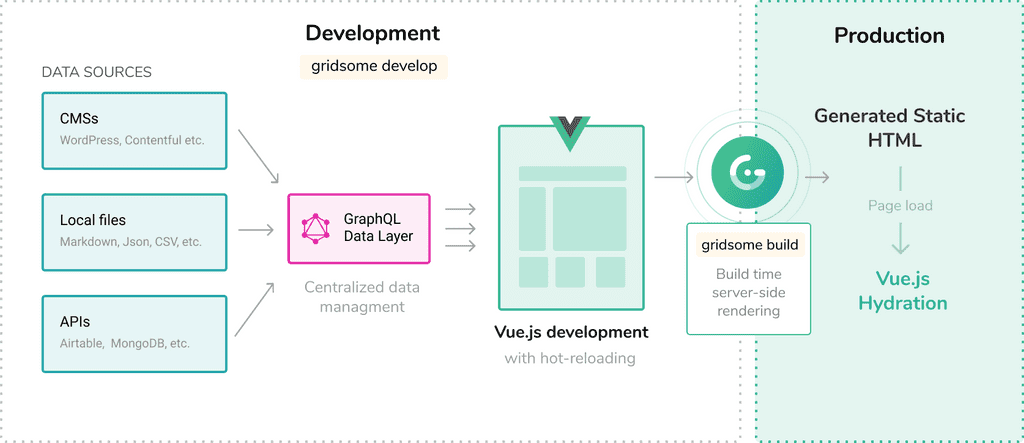
Gridsome

This guide will help you get started using Netlify CMS and Gridsome.

How to install Gridsome

1. Install Gridsome CLI tool

# Using Yarn
yarn global add @gridsome/cli

# Using NPM
npm install --global @gridsome/cli

Create a new Gridsome website

# To create a new project run
gridsome create gridsome-netlify-blog

# Then navigate to the project folder
cd gridsome-netlify-blog

# To start local dev server at http://localhost:8080
gridsome develop

Install Netlify CMS the required dependencies to your project


# Using Yarn
yarn add netlify-cms gridsome-plugin-netlify-cms @gridsome/source-filesystem @gridsome/transformer-remark

# Using NPM
npm add netlify-cms gridsome-plugin-netlify-cms @gridsome/source-filesystem @gridsome/transformer-remark

Now that the plugins are installed, it’s time to setup the configuration. Open the gridsome.config.js file and update its content to:

module.exports = {
  siteName: 'Gridsome',
  transformers: {
    remark: {
      externalLinksTarget: '_blank',
      externalLinksRel: ['nofollow', 'noopener', 'noreferrer'],
      anchorClassName: 'icon icon-link'
    }
  },

  plugins: [
    {
      use: '@gridsome/source-filesystem',
      options: {
        path: 'posts/**/*.md',
        typeName: 'Post'
      }
    },
    {
      use: `gridsome-plugin-netlify-cms`,
      options: {
        publicPath: `/admin`
      }
    },
  ]
}

Please read gridsome-plugin-netlify-cms, transformer-remark for more information.

Netlify CMS setup

  1. Create an admin directory inside the src
  2. Create an uploads directory inside the root of your project
  3. Add index.html, index.js and a config.yml file to your admin directory

Your index.html should look like this:

<!DOCTYPE html>
<html>
  <head>
    <meta charset="utf-8" />
    <meta name="viewport" content="width=device-width, initial-scale=1.0" />
    <title>Netlify CMS</title>
  </head>
  <body>
    <script src="index.js" type="module"></script>
  </body>
</html>

Your index.js should look like this:

import CMS from "netlify-cms"

Your config.yml for GitHub should look like this:

backend:
  name: git-gateway
  branch: main # Branch to update (optional; defaults to master)

media_folder: "static/uploads"
public_folder: "/uploads"

collections:
  - name: "posts"
    label: "Posts"
    folder: "posts"
    create: true
    slug: "{{slug}}"
    fields:
      - {label: "Title", name: "title", widget: "string"}
      - {label: "Excerpt", name: "excerpt", widget: "string"}
      - {label: "Publish Date", name: "date", widget: "datetime"}
      - {label: "Body", name: "body", widget: "markdown"}

Push to GitHub

It’s now time to commit your changes and push to GitHub.

git init
git add .
git commit -m "Initial Commit"
git remote add origin https://github.com/YOUR_USERNAME/NEW_REPO_NAME.git
git push -u origin main

Add your repo to Netlify

Go to Netlify and select ‘New Site from Git’. Select GitHub and the repository you just pushed to. Click Configure Netlify on GitHub and give access to your repository. Finish the setup by clicking Deploy Site. Netlify will begin reading your repository and starting building your project.

Enable Identity and Git Gateway

Netlify’s Identity and Git Gateway services allow you to manage CMS admin users for your site without requiring them to have an account with your Git host or commit access on your repo. From your site dashboard on Netlify:

  1. Go to Settings > Identity, and select Enable Identity service.
  2. Under Registration preferences, select Open or Invite only. In most cases, you want only invited users to access your CMS, but if you’re just experimenting, you can leave it open for convenience.
  3. If you’d like to allow one-click login with services like Google and GitHub, check the boxes next to the services you’d like to use, under External providers.
  4. Scroll down to Services > Git Gateway, and click Enable Git Gateway. This authenticates with your Git host and generates an API access token. In this case, we’re leaving the Roles field blank, which means any logged in user may access the CMS. For information on changing this, check the Netlify Identity documentation.

Start publishing

It’s time to create your first blog post. Login to your site’s /admin/ page and create a new post by clicking New Blog. Add a title, a date and some text. When you click Publish, a new commit will be created in your GitHub repo with this format Create Blog “year-month-date-title”.

Then Netlify will detect that there was a commit in your repo, and will start rebuilding your project. When your project is deployed you’ll be able to see the post you created.

Your basic blog scaffold is done, now you can query data from the GraphQL server just like you’re working with the filesystem. For more info read querying data.