You can adapt Netlify CMS to a wide variety of projects. It works with any content written in markdown, JSON, YAML, or TOML files, stored in a repo on GitHub, GitLab, or Bitbucket. You can also create your own custom backend.
This tutorial guides you through the steps for adding Netlify CMS to a site that’s built with a common static site generator, like Jekyll, Hugo, Hexo, or Gatsby. Alternatively, you can start from a template or dive right into configuration options.
App File Structure
A static admin folder contains all Netlify CMS files, stored at the root of your published site. Where you store this folder in the source files depends on your static site generator. Here’s the static file location for a few of the most popular static site generators:
| These generators |
store static files in |
| Jekyll, GitBook |
/ (project root) |
| Hugo, Gatsby, Nuxt 2, Gridsome, Zola, Sapper |
/static |
| Next, Nuxt 3 |
/public |
| Hexo, Middleman, Jigsaw |
/source |
| Spike |
/views |
| Wyam |
/input |
| Pelican |
/content |
| VuePress |
/.vuepress/public |
| Elmstatic |
/_site |
| 11ty |
/_site |
| preact-cli |
/src/static |
| Docusaurus |
/static |
If your generator isn’t listed here, you can check its documentation, or as a shortcut, look in your project for a css or images folder. The contents of folders like that are usually processed as static files, so it’s likely you can store your admin folder next to those. (When you’ve found the location, feel free to add it to these docs by filing a pull request!)
Inside the admin folder, you’ll create two files:
admin
 ├ index.html
 └ config.yml
The first file, admin/index.html, is the entry point for the Netlify CMS admin interface. This means that users navigate to yoursite.com/admin/ to access it. On the code side, it’s a basic HTML starter page that loads the Netlify CMS JavaScript file. The second file, admin/config.yml, is the heart of your Netlify CMS installation, and a bit more complex. The Configuration section covers the details.
In this example, we pull the admin/index.html file from a public CDN.
<!doctype html>
<html>
<head>
<meta charset="utf-8" />
<meta name="viewport" content="width=device-width, initial-scale=1.0" />
<title>Content Manager</title>
</head>
<body>
<script src="https://unpkg.com/netlify-cms@^2.0.0/dist/netlify-cms.js"></script>
</body>
</html>
In the code above the script is loaded from the unpkg CDN. Should there be any issue, jsDelivr can be used as an alternative source. Simply set the src to https://cdn.jsdelivr.net/npm/netlify-cms@^2.0.0/dist/netlify-cms.js
Installing with npm
You can also use Netlify CMS as an npm module. Wherever you import Netlify CMS, it automatically runs, taking over the current page. Make sure the script that imports it only runs on your CMS page. First install the package and save it to your project:
npm install netlify-cms-app --save
Then import it (assuming your project has tooling for imports):
import CMS from 'netlify-cms-app'
CMS.init()
CMS.registerPreviewTemplate('my-template', MyTemplate)
Configuration
Configuration is different for every site, so we’ll break it down into parts. Add all the code snippets in this section to your admin/config.yml file.
Backend
We’re using Netlify for our hosting and authentication in this tutorial, so backend configuration is fairly straightforward.
For GitHub and GitLab repositories, you can start your Netlify CMS config.yml file with these lines:
backend:
name: git-gateway
branch: master
(For Bitbucket repositories, use the Bitbucket backend instructions instead.)
The configuration above specifies your backend protocol and your publication branch. Git Gateway is an open source API that acts as a proxy between authenticated users of your site and your site repo. (We’ll get to the details of that in the Authentication section below.) If you leave out the branch declaration, it defaults to master.
Editorial Workflow
Note: Editorial workflow works with GitHub repositories, and support for GitLab and Bitbucket is in beta.
By default, saving a post in the CMS interface pushes a commit directly to the publication branch specified in backend. However, you also have the option to enable the Editorial Workflow, which adds an interface for drafting, reviewing, and approving posts. To do this, add the following line to your Netlify CMS config.yml:
publish_mode: editorial_workflow
Netlify CMS allows users to upload images directly within the editor. For this to work, the CMS needs to know where to save them. If you already have an images folder in your project, you could use its path, possibly creating an uploads sub-folder, for example:
media_folder: "images/uploads"
If you’re creating a new folder for uploaded media, you’ll need to know where your static site generator expects static files. You can refer to the paths outlined above in App File Structure, and put your media folder in the same location where you put the admin folder.
Note that themedia_folder file path is relative to the project root, so the example above would work for Jekyll, GitBook, or any other generator that stores static files at the project root. However, it would not work for Hugo, Hexo, Middleman or others that store static files in a subfolder. Here’s an example that could work for a Hugo site:
media_folder: "static/images/uploads"
public_folder: "/images/uploads"
The configuration above adds a new setting, public_folder. While media_folder specifies where uploaded files are saved in the repo, public_folder indicates where they are found in the published site. Image src attributes use this path, which is relative to the file where it’s called. For this reason, we usually start the path at the site root, using the opening /.
If public_folder is not set, Netlify CMS defaults to the same value as media_folder, adding an opening / if one is not included.
Collections
Collections define the structure for the different content types on your static site. Since every site is different, the collections settings differ greatly from one site to the next.
Let’s say your site has a blog, with the posts stored in _posts/blog, and files saved in a date-title format, like 1999-12-31-lets-party.md. Each post begins with settings in yaml-formatted front matter, like so:
---
layout: blog
title: "Let's Party"
date: 1999-12-31 11:59:59 -0800
thumbnail: "/images/prince.jpg"
rating: 5
---

This is the post body, where I write about our last chance to party before the Y2K bug destroys us all.
Given this example, our collections settings would look like this in your NetlifyCMS config.yml file:
collections:
- name: "blog"
label: "Blog"
folder: "_posts/blog"
create: true
slug: "{{year}}-{{month}}-{{day}}-{{slug}}"
fields:
- {label: "Layout", name: "layout", widget: "hidden", default: "blog"}
- {label: "Title", name: "title", widget: "string"}
- {label: "Publish Date", name: "date", widget: "datetime"}
- {label: "Featured Image", name: "thumbnail", widget: "image"}
- {label: "Rating (scale of 1-5)", name: "rating", widget: "number"}
- {label: "Body", name: "body", widget: "markdown"}
Let’s break that down:
name |
Post type identifier, used in routes. Must be unique. |
label |
What the admin UI calls the post type. |
folder |
Where files of this type are stored, relative to the repo root. |
create |
Set to true to allow users to create new files in this collection. |
slug |
Template for filenames. {{year}}, {{month}}, and {{day}} pulls from the post’s date field or save date. {{slug}} is a url-safe version of the post’s title. Default is simply {{slug}}. |
fields |
Fields listed here are shown as fields in the content editor, then saved as front matter at the beginning of the document (except for body, which follows the front matter). Each field contains the following properties:
label: Field label in the editor UI.name: Field name in the document front matter.widget: Determines UI style and value data type (details below).default (optional): Sets a default value for the field.
|
As described above, the widget property specifies a built-in or custom UI widget for a given field. When a content editor enters a value into a widget, that value is saved in the document front matter as the value for the name specified for that field. A full listing of available widgets can be found in the Widgets doc.
Based on this example, you can go through the post types in your site and add the appropriate settings to your Netlify CMS config.yml file. Each post type should be listed as a separate node under the collections field. See the Collections reference doc for more configuration options.
Filter
The entries for any collection can be filtered based on the value of a single field. The example collection below only shows post entries with the value en in the language field.
collections:
  - name: "posts"
    label: "Post"
    folder: "_posts"
    filter:
      field: language
      value: en
    fields:
      - {label: "Language", name: "language"}
Authentication
Now that you have your Netlify CMS files in place and configured, all that’s left is to enable authentication. We’re using the Netlify platform here because it’s one of the quickest ways to get started, but you can learn about other authentication options in the Backends doc.
Setup on Netlify
Netlify offers a built-in authentication service called Identity. In order to use it, connect your site repo with Netlify. Netlify has published a general Step-by-Step Guide for this, along with detailed guides for many popular static site generators, including Jekyll, Hugo, Hexo, Middleman, Gatsby, and more.
Enable Identity and Git Gateway
Netlify’s Identity and Git Gateway services allow you to manage CMS admin users for your site without requiring them to have an account with your Git host or commit access on your repo. From your site dashboard on Netlify:
- Go to Settings > Identity, and select Enable Identity service.
- Under Registration preferences, select Open or Invite only. In most cases, you want only invited users to access your CMS, but if you’re just experimenting, you can leave it open for convenience.
- If you’d like to allow one-click login with services like Google and GitHub, check the boxes next to the services you’d like to use, under External providers.
- Scroll down to Services > Git Gateway, and click Enable Git Gateway. This authenticates with your Git host and generates an API access token. In this case, we’re leaving the Roles field blank, which means any logged in user may access the CMS. For information on changing this, check the Netlify Identity documentation.
With the backend set to handle authentication, now you need a frontend interface to connect to it. The open source Netlify Identity Widget is a drop-in widget made for just this purpose. To include the widget in your site, add the following script tag in two places:
<script src="https://identity.netlify.com/v1/netlify-identity-widget.js"></script>
Add this to the <head> of your CMS index page at /admin/index.html, as well as the <head> of your site’s main index page. Depending on how your site generator is set up, this may mean you need to add it to the default template, or to a “partial” or “include” template. If you can find where the site stylesheet is linked, that’s probably the right place. Alternatively, you can include the script in your site using Netlify’s Script Injection feature.
When a user logs in with the Netlify Identity widget, an access token directs to the site homepage. In order to complete the login and get back to the CMS, redirect the user back to the /admin/ path. To do this, add the following script before the closing body tag of your site’s main index page:
<script>
  if (window.netlifyIdentity) {
    window.netlifyIdentity.on("init", user => {
      if (!user) {
        window.netlifyIdentity.on("login", () => {
          document.location.href = "/admin/";
        });
      }
    });
  }
</script>
Note: This example script requires modern JavaScript and does not work on IE11. For legacy browser support, use function expressions (function () {}) in place of the arrow functions (() => {}), or use a transpiler such as Babel.
Accessing the CMS
Your site CMS is now fully configured and ready for login!
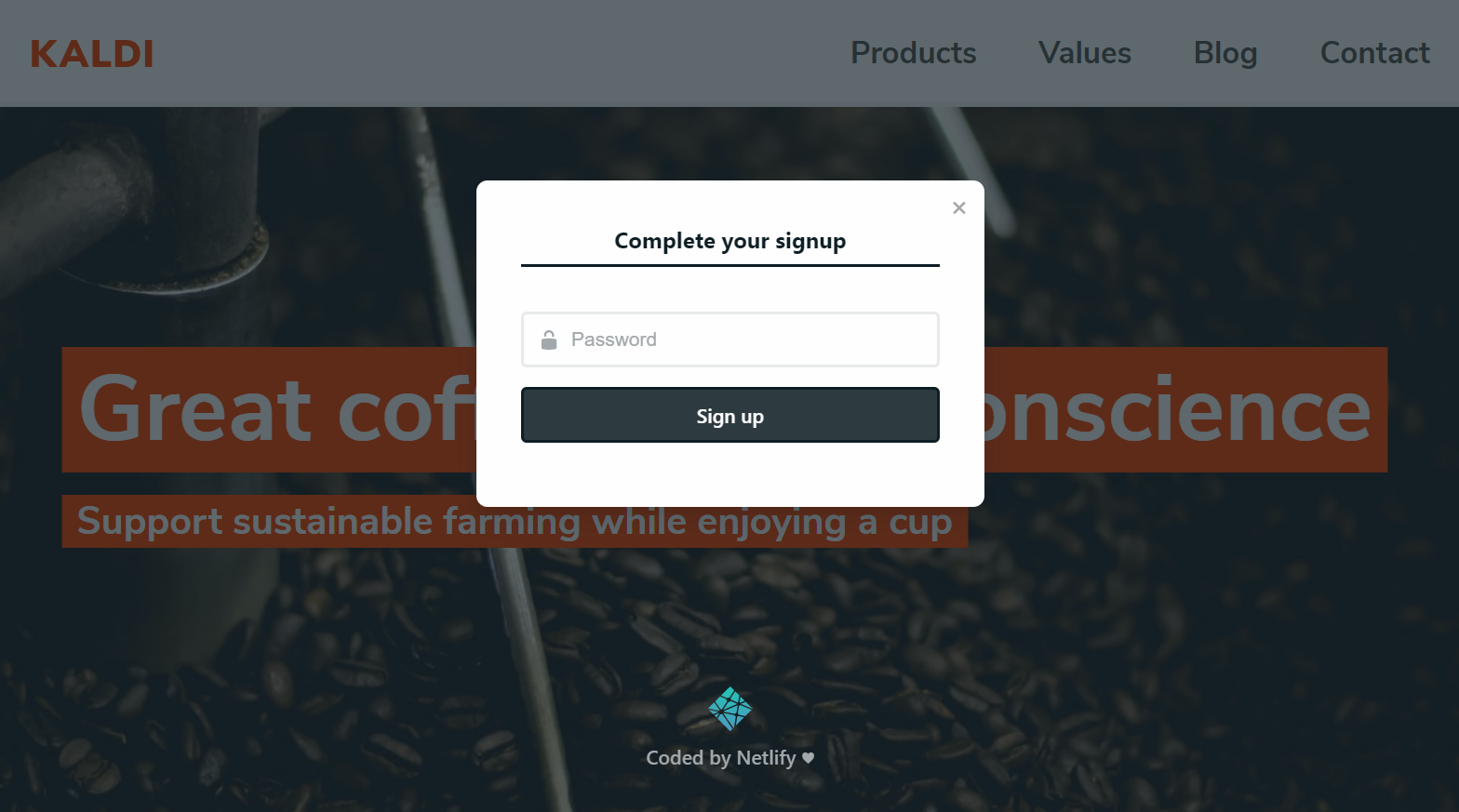
If you set your registration preference to “Invite only,” invite yourself (and anyone else you choose) as a site user. To do this, select the Identity tab from your site dashboard, and then select the Invite users button. Invited users receive an email invitation with a confirmation link. Clicking the link will take you to your site with a login prompt.
If you left your site registration open, or for return visits after confirming an email invitation, access your site’s CMS at yoursite.com/admin/.
Note: No matter where you access Netlify CMS — whether running locally, in a staging environment, or in your published site — it always fetches and commits files in your hosted repository (for example, on GitHub), on the branch you configured in your Netlify CMS config.yml file. This means that content fetched in the admin UI matches the content in the repository, which may be different from your locally running site. It also means that content saved using the admin UI saves directly to the hosted repository, even if you’re running the UI locally or in staging.
Happy posting!